 PluginStats
GitDoc installs statistics
By Jonathan Carter (5 listings) · VS Code Marketplace · Other
Automatically commit/push/pull changes on save, so you can edit a Git repo like a multi-file, versioned document.
GitDoc has 3,900,143 recorded installs on VS Code Marketplace.
It ranks #208 of 2,500 tracked VS Code Marketplace listings by installs.
It is rated 4.5 out of 5 from 11 ratings.
PluginStats has 3 daily observations since Oct 16, 2026; the latest is from Oct 18, 2026.
Rating: 4.55 / 5 from 11 ratings
About GitDoc
GitDoc 📄
GitDoc is a Visual Studio Code extension that allows you to automatically commit/push/pull changes on save. This gives you the simplicity of a Google/Word Doc (creating "snapshots" by saving, not by running git commit), but with the richness of git history, and the ability to easily share your work. You can enable these auto-commits during specific periods (e.g. when you're working on a feature branch and want to track the evolution of a change), permanently on specific branches (e.g. you have a docs repo that you want to version like a document), or only for specific files (e.g. auto-commmit *.md files, but nothing else). This allows you to easily switch between "versioning modalities", in order to support the diverse set of use cases that can benefit from being stored in a git repo (e.g. team projects, your personal blog, school work, etc.)
By default, commits are only created for error-free code, which allows you to author and save changes, knowing you aren't accidentally persisting invalid states. Additionally, just because you're auto-commmiting your changes, doesn't mean you lose control over your version history. When needed, you can easily restore, undo, and/or squash versions, without needing to memorize the magic of git 🦸♀️
Getting Started
1. Install this extension 2. Run the GitDoc: Enable command, and notice that your status bar now includes a "mirror" icon button. This indicates that GitDoc is enabled 🚀 3. Open a file, make a change, and then save it 4. Open the Timeline view on the Explorer tab (or run git log), and within 30s, notice that a new commit was created on your behalf 5. Select the top item in the Timeline view to see the diff of the change you just made 6. Continue to make changes, knowing that they'll be automatically tracked for you (as long as they don't contain errors) 👍
From here, you can restore, undo, and/or squash versions from the Timeline, in order to "clean" up/manage your history. When you're done, simply click the GitDoc button in your status bar, or run the GitDoc: Disable command, in order to disable auto-commits.
And if you'd like to have GitDoc generate semantic commit messages on your behalf, you can enable the Copilot integration, which uses AI to automatically summarize your changes 🤖
Auto-commiting
By default, when you enable GitDoc, it will create commits every 30s, _whenever there are actually changes_. So if you don't make any changes, than it won't make any commits. However, if you're continuously writing code, then it's only going to capture those edits in 30s intervals. This way, you don't generate a massive number of commits, depending on how frequently you save files. If you find that 30s is too short or too long, you can customize this by setting the GitDoc: Auto Commit Delay setting to the appropriate value.
Error Detection
By default, auto-commits are only made when a file is changed, and it doesn't have any pending errors (e.g. issues in the Problems panel with an error severity). This prevents you from creating commits that represent invalid changes, and allows you to install whatever linting/testing/build extensions you want, knowing that they'll "gate" your auto-commits. If you want to suppress commits in the presence of warnings, or ignore problems entirely, and simply always auto-commit, then you can set the GitDoc: Commit Validation Level setting to warning or none respectively.
Auto-commiting specific files
If you'd like to only enable auto-commiting for specific files, you can set the GitDoc: File Pattern setting to a file glob. For example, you could set this to /*.md in order to auto-commit markdown files, but nothing else. By default, this is set to /*, which auto-commits changes to any file.
When this setting is set, the GitDoc status bar which only appear when you have a file that is matches it. This way, you can easily tell when you're editing a file that will be auto-committed/pushed.
Auto-saving
When you enable GitDoc, it creates a new commit anytime you save a file. This allows you to control when commits are created, simply be determining when you save. You can save a single file, or multiple files, and all of the changes within a single "save operation" will be committed together. If you'd like to automatically track your changes, without needing to explicitly save, then simply set the Files: Auto Save setting, specifying the exact behavior you'd like (e.g. save every 30s).
Auto-pushing
In addition to automatically creating commits, GitDoc will automatically push your changes to the configured remote. By default, changes will be pushed as soon as you commit them, but this can be configured via the GitDoc: Autopush setting. This can be set to afterDelay in order to push on some sort of frequency (controlled via the GitDoc: Auto Push Delay setting). Additionally, if you don't want to auto-push changes, you can disable this behavior by setting the GitDoc: Autopush setting to off.
By default, GitDoc will perform a "force push", since certain operations such as squashing can actually re-write history. However, if you'd like to change this behavior, you can set the GitDoc: Push Mode to either Force Push with Lease or Push.
Auto-pulling
By default, when you enable GitDoc, it will automatically pull changes from the repo when you 1) open the workspace, and 2) push changes. This ensures that your local copy is in sync with the remote, and attempts to mitigate merge conflics from happening. If you'd like to modify this behavior, you can customize the GitDoc: Auto Pull and GitDoc: Pull on Open settings.
AI-Generated Commit Messages…
Description from the VS Code Marketplace listing.
- commit
- git
- github-copilot
- sync
Where GitDoc sits in the listing
Each band is one page of 20. Installs on a log scale. Placement is projected from installs, so it can differ from the marketplace's own sort order. Hover a dot to see the listing.


Charts
Images: 30d · 1y · all time · 1600×900 dark


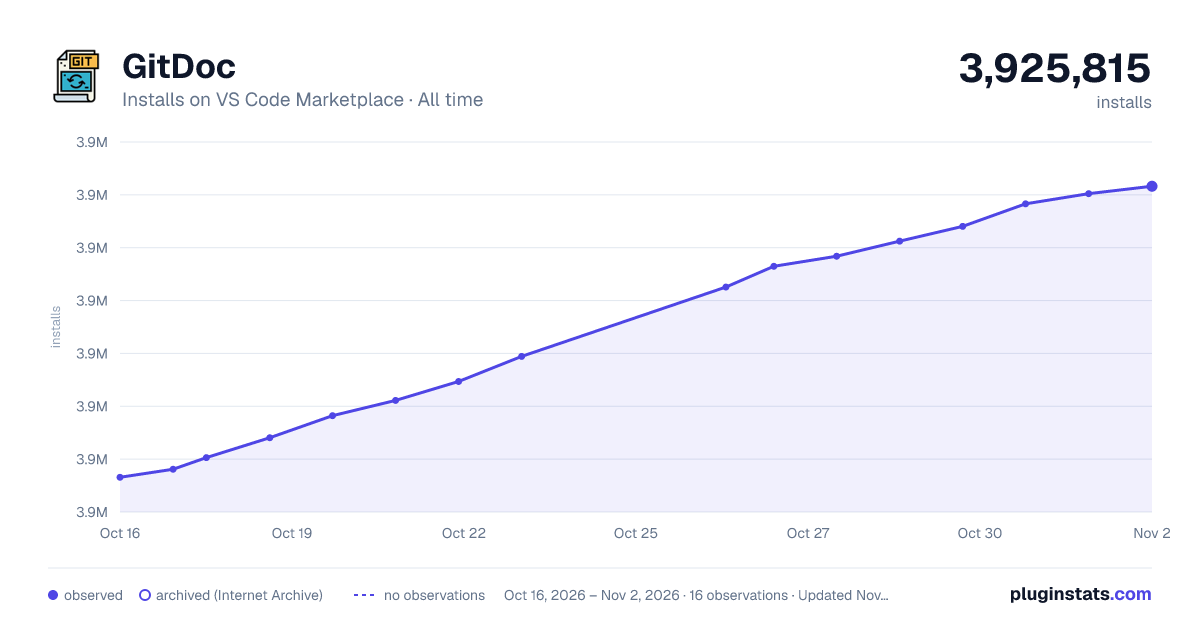

Adoption over time


7/30/90-day growth


Filled points are observed values; hollow points come from Internet Archive snapshots of the listing page. Dashed segments span periods with no observations — values between points are not interpolated.
Recent observations
Full history (3)Similar VS Code Marketplace Other plugins
Data source
Install counts, average rating, and rating counts come from the public Visual Studio Marketplace gallery API. Installs are cumulative and exclude updates.
Listing: https://marketplace.visualstudio.com/items?itemName=vsls-contrib.gitdoc. First seen Oct 16, 2026; last successful collection Oct 18, 2026. See the methodology.