 PluginStats
Processing Language installs statistics
By Avin Zarlez (2 listings) · VS Code Marketplace · Programming Languages
Processing Language Support for VSCode
Processing Language has 148,496 recorded installs on VS Code Marketplace, ranking #1871 of 2,501 tracked listings.
Rating: 5.00 / 5 from 5 ratings
About Processing Language
Processing for Visual Studio Code
What this extension is
This is a Visual Studio Code extension created by Tobiah Zarlez to add Processing language support.
What this extension isn't
This extension does not allow you to debug Java or Processing projects.
Can you add a feature I want?
Possibly! Let us know, we'd love to hear your suggestions.
Installation Instructions
- Open Visual Studio Code 1. Open the Command Pallet (CTRL+SHIFT+P for Windows/Linux or CMD+SHIFT+P on Mac) enter the command “Install Extension” 1. Search for “Processing Language” and click on this extension. 1. Restart Visual Studio Code
Feature list
Syntax highlighting
Open any .pde file, or simply choose "Processing" from the drop down menu in the bottom right corner.
Snippets
Once the language has been set, you will see code snippets pop up automatically as you type!
Commands
Installing this extension will add the following commands to your command pallette (CTRL+SHIFT+P, or opened by View -> Command Pallette). These commands can be selected and run from there, to complete the corresponding tasks.
Command: Create Task File
Adds a .vscode/tasks.json file to your project folder, that has the contents of the ProcessingTasks.json located in the root folder of this project.
When you run this task (Keyboard shortcut: Ctrl+Shift+B), it will compile and run your project!
If you would like to see output from the compiler, simply comment out the line "showOutput": "never",
NOTE: Processing must be added to your path, or you must set the "processing.path" setting!
Follow these instructions to add Processing to your path, or these alternate instructions instead to modify the path setting.
See "Requirements" for full details.
Command: Run Processing Project
This is just a shortcut for running the .vscode/tasks.json file. Same as pressing Ctrl+Shift+B
Note: Must have ran the "Create Processing Task File" command first, see above!
Command: Open Extension Documentation
Opens this documentation.
By default uses processing.org's documentation. Can change to p5js's if preferred using the processing.docs setting.
Command: Open Documentation for Selection
Use the pallet command "Processing: Open Documentation for Selection" to open the processing documentation for the current selection.
By default uses processing.org's documentation. Can change to p5js's if preferred using the processing.docs setting.
Command: Search Processing Website
Use the pallet command "Processing: Search Processing Website" to quickly search whatever you want on the processing website.
By default uses processing.org's documentation. Can change to p5js's if preferred using the processing.docs setting.
By default uses Google for search. Can change to DuckDuckGo if preferred using the processing.search setting.
Requirements
Installing the extension will give you instant access to syntax highlighting and snippets.
However, in order to compile and run your processing project from Visual Studio Code, you will need to do three things:
- Set up your .vscode/tasks.json file. (See: "Command: Create Task File") 1. Add Processing to your path OR Modify your .vscode/tasks.json file. (See: "Add Processing to path" or "alternate method") 1. Have a .pde whose filename matches the name of the project's folder (General Processing Requirement). Your file cannot contain any spaces or it will not run correctly.
Add Processing to path
In order to automatically compile and open from Visual Studio Code, I recommend adding Processing to your path.
What does that mean?
That means you should be able to type the processing from anywhere on your machine, and it will open Processing.
How do I do that?
It's easier than you might think!
Windows
• Open the "Advanced System Settings" by running sysdm.cpl • In the "System Properties" window, click on the Advanced tab. • In the "Advanced" section, click the Environment Variables button. • Edit the "Path" variable. Append the processing path (Example: ;C:\Program Files\Processing-3.0.1) to the variable value. Each entry is separated with a semicolon.
Mac
Open Processing, and click the Tools -> Install "processing-java" menu item.
Note: You will have to install processing-java for all users for this to work
Linux
Set your PATH to where your processing application is located.
Example: export PATH=$PATH:/opt/processing/processing-2.0b4
You also need to create an alias for processing-java in /bin/ instead of /usr/bin/.
Example: sudo ln -s /opt/processing/processing-java /bin/processing-java
Then what?
Once you've installed Processing to your path, you just need to add the appropriate .vscode/tasks.json file to every Processing project.
See the command "Create Task File"
Alternate Method
What if you cannot, or do not want to add Processing to your path?
Simply modify the processing.path setting to follow the path to wherever processing is installed on your machine. Be sure to remember to keep the processing-java at the end of the path!
To change settings in VSCode, here is a link to the official documentation.
(Remember, for Windows be sure to turn any "" into "\"!)
Example:
NOTE: This is untested on Mac and Linux
If needed: Overwrite default terminal
You may need to also overwrite your default terminal in order to get your task file to run correctly.
Following the instructions on the official VSCode documentation, all you have to do is add a few extra lines to your task file once you generate it.
For example, if you are running Windows and want the task file to use Command Prompt ('cmd.exe') you can add an 'options' parameter under the 'windows' portion:
To Do List
• Take nice looking (Animated?) screen shots for README/Instructions
Credits
Syntax highlighting and snippets code based on the Processing Sublime Text plugin.
Other resources
Here are some other resources I recommend:
• Processing's official site • Tobiah Zarlez Blog
Description from the VS Code Marketplace listing.
- java
- language
- multi-root ready
- pde
- processing
- snippet
- snippets
README badge
Show your rank in a README or on your website. The badge updates automatically.
Charts
Images: 30d · 1y · all time · 1600×900 dark


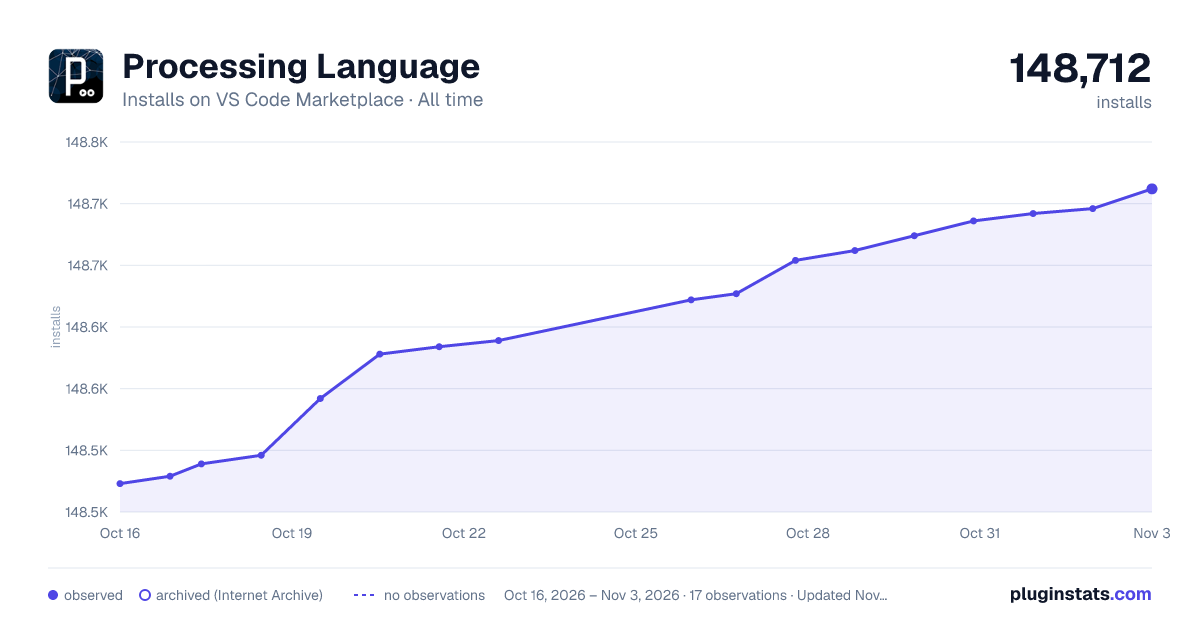

Adoption over time
7/30/90-day growth
Ranking history
Ratings over time
Listing placement
Listing placement
Listing placement
Filled points are observed values; hollow points come from Internet Archive snapshots of the listing page. Dashed segments span periods with no observations — values between points are not interpolated.
Each band is one page of 20. Installs on a linear scale. Placement is projected from installs, so it can differ from the marketplace's own sort order. Hover a dot to see the listing.
Recent observations
Full history (4)Similar VS Code Marketplace Programming Languages plugins
All 20 Processing Language alternativesData source
Install counts, average rating, and rating counts come from the public Visual Studio Marketplace gallery API. Installs are cumulative and exclude updates.
Listing: https://marketplace.visualstudio.com/items?itemName=Tobiah.language-pde. First seen Oct 16, 2026; last successful collection Oct 19, 2026. See the methodology.