 PluginStats
Databricks Power Tools installs statistics
By paiqo · VS Code Marketplace · Azure
Run notebooks cell-by-cell, browse and edit your Databricks Workspace, DBFS, Clusters, Jobs, Secrets, Repos and SQL. Supports Azure Databricks, Databricks on AWS and Databricks on GCP.
Databricks Power Tools has 153,227 recorded installs on VS Code Marketplace.
It ranks #1832 of 2,501 tracked VS Code Marketplace listings by installs.
It is rated 4.3 out of 5 from 19 ratings.
PluginStats has 4 daily observations since Oct 16, 2026; the latest is from Oct 19, 2026.
Rating: 4.32 / 5 from 19 ratings
About Databricks Power Tools
Databricks Power Tools for VSCode
This is a Visual Studio Code extension that allows you to work with Databricks locally from VSCode in an efficient way, having everything you need integrated into VS Code - see Features. It allows you to execute your notebooks, start/stop clusters, execute jobs and much more!
The extensions can be downloaded from the official Visual Studio Code extension gallery: Databricks VSCode
Features
• Workspace Manager • Up-/download of notebooks and whole folders • Compare/Diff of local vs online notebook • Support for files and notebooks • Cluster Manager • Start/stop clusters • Script cluster definition as JSON • Open in OS File Explorer • Notebook Kernel • Execute local code against a running Databricks cluster • Support for Python, SQL, Scala and R files/notebooks • interactive cell-by-cell execution as in Databricks web UI • rich output and visualization of results • support for Widgets • File System Integration • integrate DBFS and Databricks Workspace/notebooks next to your local file system • easy drag&drop between local, DBFS and also workspace/notebooks! • similar, well-known UI; same behavior as if DBFS and workspace/notebooks existed locally • Connection Manager • Easy configuration via standard VS Code settings • Manage and switch between multiple Databricks workspaces (e.g. DEV/TEST/PROD) • Supports Azure Databricks, Databricks on AWS and Dtabricks on GCP • control how notebooks are downloaded (Jupyter notebook, source code, ...) • various other settings • Load Databricks directly from your Azure Account • Leverage connections configured by the official Databricks VSCode extension • SQL / Data Browser • Browse availabl SQL objects from the Databricks metastore • databases, tables and views, columns, ... • Job Manager • Start/stop jobs • View job-run history + status • Script job definition as JSON • View job-run output as JSON • DBFS Browser • Supports static mount points (e.g. using Service Principals) • Up-/Download of files • Secret Manager • Create/delete secret scopes • Create/delete secrets • view Azure Key Vault backed secret scopes • Repo Manager • Create/delete linked repositories • Update repository to repo or branch • Integration for CI/CD using DatabricksPS PowerShell module
Change Log
Installation
The extension can be downloaded directly from within VS Code. Simply go to the Extensions tab, search for "Databricks" and select and install the extension "Databricks VSCode" (ID: paiqo.databricks-vscode).
Alternatively it can also be downloaded the .vsix directly from the VS Code marketplace: Databricks VSCode.
Preview-Versions might also be available via github Releases from this repository.
Setup and Configuration
The configuration happens directly via VS Code by simply opening the settings Then either search for "Databricks" or expand Extensions -> Databricks. The most important setting to start with is definitly databricks.connectionManager as it defines how you manage your connections. There are a couple of differnt options which are described further down below. All the settings themselves are very well described and it should be easy for you to populate them. Also, not all of them are mandatory, and depend a lot on the connection manager that you have chosen.Some of the optional settings are experimental or still work in progress.
Setup and Configuration (VSCode Connection Manager)
Using VSCode Settings as your connection manager allows you to define and manage your connections directly from within VSCode via regular VSCode settings. It is recommended to use workspace settings over user settings here as it might get confusing otherwise. The default connection can be configured directly via the settings UI using the databricks.connection.default.* settings. To configure multiple Databricks Connections/workspaces, you need to use the JSON editor and add them to databricks.connections:
The localSyncFolder is the location of a local folder which is used to download/sync files from Databricks and work with them locally (notebooks, DBFS, ...). It also supports environment variables - e.g. %USERPROFILE%\\Databricks or ~\\Databricks. The sensitive values entered like personalAccessToken will be safely stored in the system key chain/credential manager (see databricks.sensitiveValueStore) once the configuration is read the first time. This happens if you open the extension. Existing connections can be updated directly in VSCode settigns or via the JSON editor. To update a personalAccessToken, simply re-enter it and the extension will update it in the system key chain/credential manager. The only important thing to keep in mind is that the displayName should be unique on the whole machine (across all VSCode workspaces) as the displayName is used to identify the personalAccessToken to load from the system key chain/credential manager.
Another important setting which requires modifying the JSON directly are the export formats which can be used to define the format in which notebooks are up-/downloaded. Again, there is a default/current setting and it can also configured per Connection under databricks.connections:
Each filetype can either be exported as raw/source file (.scala, .py, .sql, .r) or, if supported, also as a notebook (.ipynb). This is also very important if you want to upload a local file as these also have to match these extension and will be ignored otherwise! For active development it is recommended to use .ipynb format as this also allows you to execute your local code against a running Databricks cluster - see Notebook Kernel.
All these settings can either be configured on a global/user or on a workspace level. The recommendation is to use workspace configurations and then to include the localSyncFolders into your workspace for easy access to your notebooks and sync to GIT. Using a workspace configuration also allows you to separate different Databricks Connections completely - e.g. for different projects.…
Description from the VS Code Marketplace listing.
- AWS
- azure
- cluster
- data
- databricks
- GCP
- notebook
- notebookKernelJupyterNotebook
- pyspark
- remote
- spark
- sql
Charts
Images: 30d · 1y · all time · 1600×900 dark


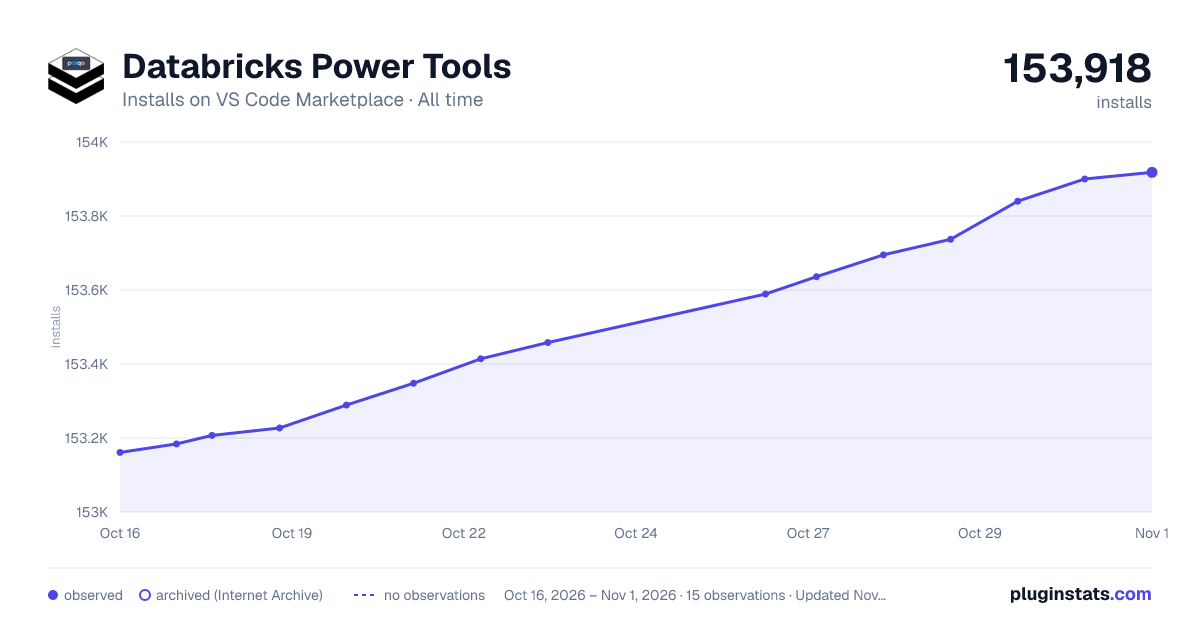

Adoption over time


7/30/90-day growth


Ranking history


Ratings over time


Listing placement


Listing placement


Listing placement


Filled points are observed values; hollow points come from Internet Archive snapshots of the listing page. Dashed segments span periods with no observations — values between points are not interpolated.
Each band is one page of 20. Installs on a log scale. Placement is projected from installs, so it can differ from the marketplace's own sort order. Hover a dot to see the listing.
Recent observations
Full history (4)Similar VS Code Marketplace Azure plugins
All 20 Databricks Power Tools alternativesData source
Install counts, average rating, and rating counts come from the public Visual Studio Marketplace gallery API. Installs are cumulative and exclude updates.
Listing: https://marketplace.visualstudio.com/items?itemName=paiqo.databricks-vscode. First seen Oct 16, 2026; last successful collection Oct 19, 2026. See the methodology.