 PluginStats
StandardJS - JavaScript Standard Style installs statistics
By Standard · VS Code Marketplace · Linters
Visual Studio Code extension for JavaScript Standard Style with automatic fixing.
StandardJS - JavaScript Standard Style has 759,134 recorded installs on VS Code Marketplace.
It ranks #649 of 2,501 tracked VS Code Marketplace listings by installs.
It is rated 5.0 out of 5 from 5 ratings.
PluginStats has 4 daily observations since Oct 16, 2026; the latest is from Oct 19, 2026.
Rating: 5.00 / 5 from 5 ratings
About StandardJS - JavaScript Standard Style
vscode-standard
Visual Studio Code extension for JavaScript Standard Style with automatic fixing.
How to use
1. Install the 'StandardJS - JavaScript Standard Style' extension
Launch VSCode Quick Open (⌘+P), paste the following command, and press enter.
For more information, take a look at the documentation.
2. Install the engine standard, semistandard, standardx or ts-standard
This can be done globally or locally. We recommend that you install them locally (i.e. saved in your project's devDependencies), to ensure that other developers have it installed when working on the project.
3. Enable the extension
That's it! The extension will automatically be enabled in projects that has one of the engines installed in devDependencies in package.json.
Extension options
We give you some options to customize vscode-standard in your VSCode settings.json.
| Option | Description | Default |
| standard.enable | enable or disable JavaScript Standard Style | true | | standard.enableGlobally | enable or disable JavaScript Standard Style globally | false | | standard.run | run linter onSave or onType | onType | | standard.autoFixOnSave | enable or disable auto fix on save. It is only available when VSCode's files.autoSave is either off, onFocusChange or onWindowChange. It will not work with afterDelay. | false | | standard.nodePath | use this setting if an installed standard package can't be detected. | null | | standard.validate | an array of language identifiers specify the files to be validated | ["javascript", "javascriptreact", "typescript", "typescriptreact] | | standard.workingDirectories | an array for working directories to be used. | [] | | standard.engine | You can use semistandard, standardx or ts-standard instead of standard. Just make sure you've installed the semistandard, the standardx or the ts-standard package, instead of standard. | standard | | standard.usePackageJson | if set to true, JavaScript Standard Style will use project's package.json settings, otherwise globally installed standard module is used | true | | standard.treatErrorsAsWarnings | Any linting error reported by Standard will instead be displayed as a warning within VS Code. | false |
Configuring Standard
You can still configure standard itself with the standard.options setting, for example:
It's recommended to change these options in your package.json file on a per-project basis, rather than setting them globally in settings.json. For example:
If you've got multiple projects within a workspace (e.g. you're inside a monorepo), VSCode prevents extensions from accessing multiple package.json files.
If you want this functionality, you should add each project folder to your workspace (File -> Add folder to workspace...). If you can't see this option, download the VSCode Insiders Build to get the latest features.
Commands
When you open the Command Palette in VSCode (⇧⌘P or Ctrl+Shift+P), this plugin has the following options:
• Fix all auto-fixable problems - applies JavaScript Standard Style auto-fix resolutions to all fixable problems. • Disable JavaScript Standard Style for this Workspace - disable JavaScript Standard Style extension for this workspace. • Enable JavaScript Standard Style for this Workspace - enable JavaScript Standard Style extension for this workspace. • Show output channel - view the linter output for JavaScript Standard Style.
FAQ
1. How do I lint script tags in vue or html files?
You can lint them with eslint-plugin-html. Make sure it's installed, then enable linting for those file types in your settings.json:
If you want to enable autoFix for the new languages, you should enable it yourself:
How to develop
1. Fork this repo, and clone your fork locally. 2. Run npm install right under project root. 3. Open project in VSCode. The plugin should be disabled whilst developing. 4. Run the watch build task (⇧⌘B or Ctrl+Shift+B) to compile the client and server. 5. To run/debug the extension, use the Launch Client launch configuration (from the VSCode debug panel). 6. To debug the server, use the Attach to Server launch configuration.
How to package
1. Run npm install 2. Run npm run package to build a .vsix file 3. You can install it with code --install-extension vscode-standard.vsix
License
MIT
Description from the VS Code Marketplace listing.
- javascript
- javascriptreact
- json
- typescript
- typescriptreact
- vue
Charts
Images: 30d · 1y · all time · 1600×900 dark


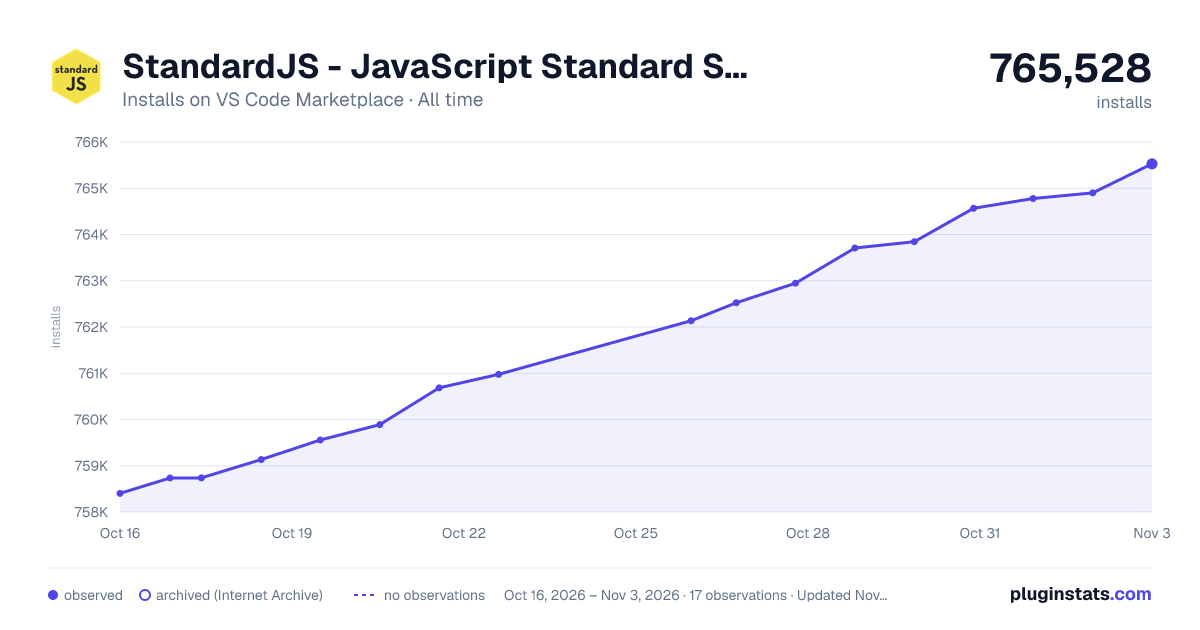

Adoption over time


7/30/90-day growth


Ranking history


Ratings over time


Listing placement


Listing placement


Filled points are observed values; hollow points come from Internet Archive snapshots of the listing page. Dashed segments span periods with no observations — values between points are not interpolated.
Each band is one page of 20. Installs on a log scale. Placement is projected from installs, so it can differ from the marketplace's own sort order. Hover a dot to see the listing.
Recent observations
Full history (4)Similar VS Code Marketplace Linters plugins
All 20 StandardJS - JavaScript Standard Style alternativesData source
Install counts, average rating, and rating counts come from the public Visual Studio Marketplace gallery API. Installs are cumulative and exclude updates.
Listing: https://marketplace.visualstudio.com/items?itemName=standard.vscode-standard. First seen Oct 16, 2026; last successful collection Oct 19, 2026. See the methodology.