 PluginStats
Material Icon Theme installs statistics
By Philipp Kief (2 listings) · VS Code Marketplace · Themes
Material Design Icons for Visual Studio Code
Material Icon Theme has 35,953,105 recorded installs on VS Code Marketplace.
It ranks #37 of 2,501 tracked VS Code Marketplace listings by installs.
It is rated 4.9 out of 5 from 399 ratings.
PluginStats has 4 daily observations since Oct 16, 2026; the latest is from Oct 19, 2026.
Rating: 4.94 / 5 from 399 ratings
About Material Icon Theme
Material Icon Theme
Material Design icons for Visual Studio Code
Enjoying Material Icon Theme? Support the project by starring it or becoming a sponsor!
File icons
🏞️ Show all available file icons
Folder icons
🏞️ Show all available folder icons
Table of Contents
• Features • Getting Started • Customization • Commands • Icon sources • Contributors • Contributing • Related extensions
Features
• Material Design file & folder icons for VS Code • Customizable colors, opacity, and saturation • Icon packs and theme support • Custom icon associations and clones • Easy to use, modern, and actively maintained
Getting Started
1. Install the extension
2. Activate the icon theme Open the command palette (Ctrl+Shift+P or Cmd+Shift+P on macOS), type Material Icons: Activate Icon Theme, and select it.
3. Enjoy your new icons Your editor will now display beautiful, customizable Material Design icons for files and folders.
Customization
You can personalize the appearance of Material Icon Theme by adjusting colors, icon styles, opacity, and more to match your preferences or workflow.
Customize file & folder color
You can change the color of the default file and folder icons using the command palette:
or via user settings:
Folder themes
You can change the design of the folder icons using the command palette:
or via user settings:
Custom icon opacity
You can set a custom opacity for the icons:
Custom icon saturation
If colors do not make you happy you can change the icons to have less saturation making them look grayish or completely grayscale by setting saturation to 0:
You can also achieve no saturation (i.e., grayscale) by setting Toggle Grayscale to ON.
Custom icon associations
You can customize the icon associations directly in the user settings.
File associations
With the *.[extension] pattern you can define custom file icon associations. For example you could define an icon for *.sample and every file that ends with .sample will have the defined icon. However, not all files with the same file extension always have the same icon. For some specific file names there is a special icon. In order to overwrite all the specific file icons as well, two asterisks must be set instead of one, i.e. **.[extension].
If there's no leading * it will be automatically configured as filename and not as file extension.
Custom SVG icons
It's possible to add custom icons by adding a path to an SVG file which is located relative to the extension's dist folder. However, the restriction applies that the directory in which the custom icons are located must be within the extensions directory of the .vscode folder in the user directory.
For example a custom SVG file called sample.svg can be placed in an icons folder inside of VS Code's extensions folder:
In the settings.json (User Settings only!) the icon can be associated to a file name or file extension like this:
_Note: The custom file name must be configured in the settings without the file ending .svg as shown in the example above._
Custom file icon clones
It's also possible to clone existing file icons and change their colors to create new icons that can be associated with file names or file extensions. The following example shows how to clone the rust icon:
This will create two new icons called rust-mod and rust-lib that are associated with the file names mod.rs and lib.rs respectively. The base property defines the icon that should be cloned (in this case the rust icon). The color property defines the color of the new icon. The lightColor property is optional and defines the color of the icon when Visual Studio Code is running with a light color theme. The fileNames property defines the file names that should be associated with the new icon. There's also a fileExtensions property, which can be used to associate the new icon with file extensions ("fileExtensions": ["ext", "ext2"]).
• Although you can use any #RRGGBB color for the color and lightColor properties, if you want to stick with colors from the material palette, you can check the full list of allowed aliases in the materialPalette.ts. • You can check the full list of available icons to be used as the base in the fileIcons.ts.
Folder associations
The following configuration can customize the folder icons. It is also possible to overwrite existing associations and create nice combinations. For example you could change the folder theme to "classic" and define icons only for the folder names you like.
Custom SVG folder icons
Similar to the files, it is also possible to reference your own SVG icons for folder icons. Here it's important to provide two SVG files: one for the folder if it's closed and another one for the opened state. These two files - let's call them "folder-sample.svg" and "folder-sample-open.svg" - have to be placed into a directory which is relative to the extensions dist folder. This directory has to be somewhere inside of the .vscode/extensions folder.
In our example we place them into an icons folder inside of the .vscode/extensions folder:
In the settings.json (User Settings only!) the folder icons can be associated to a folder name (e.g. "src") like this:
Custom folder icon clones
It's also possible to clone existing folder icons and change their colors to create new icons that can be associated with folder names. The following example shows how to clone the admin folder icon:…
Description from the VS Code Marketplace listing.
- customization
- icons
- icon-theme
- material
- theme
Charts
Images: 30d · 1y · all time · 1600×900 dark


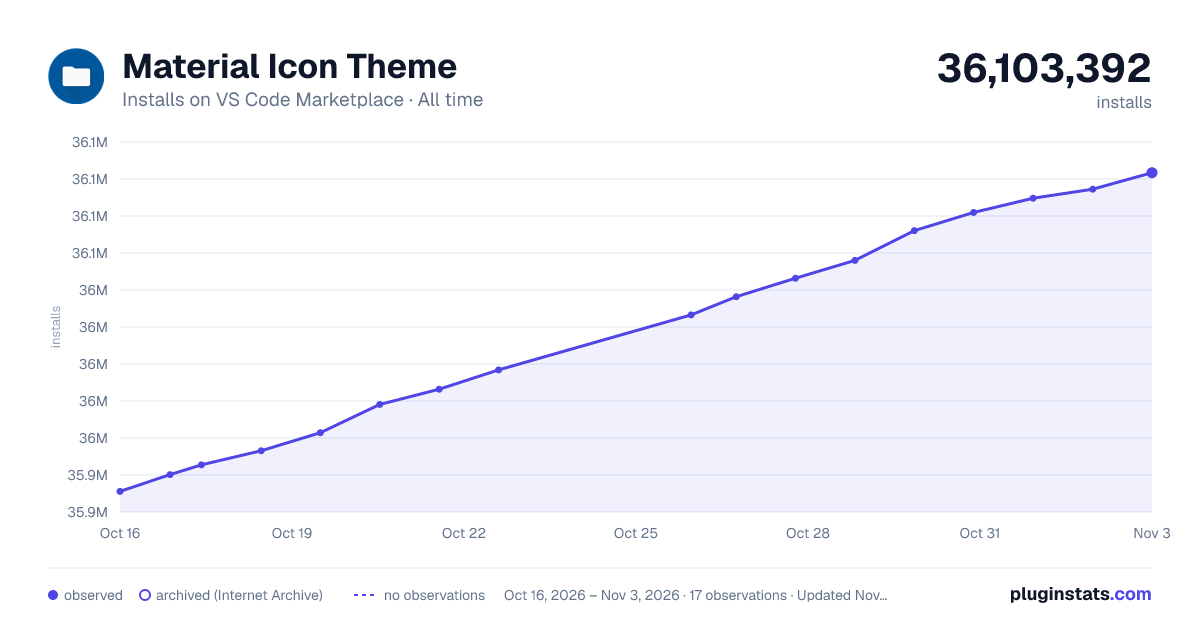

Adoption over time


7/30/90-day growth


Ranking history


Ratings over time


Listing placement


Filled points are observed values; hollow points come from Internet Archive snapshots of the listing page. Dashed segments span periods with no observations — values between points are not interpolated.
Each band is one page of 20. Installs on a log scale. Placement is projected from installs, so it can differ from the marketplace's own sort order. Hover a dot to see the listing.
Recent observations
Full history (4)Similar VS Code Marketplace Themes plugins
All 20 Material Icon Theme alternativesData source
Install counts, average rating, and rating counts come from the public Visual Studio Marketplace gallery API. Installs are cumulative and exclude updates.
Listing: https://marketplace.visualstudio.com/items?itemName=PKief.material-icon-theme. First seen Oct 16, 2026; last successful collection Oct 19, 2026. See the methodology.