 PluginStats
Makefile Tools installs statistics
By Microsoft (224 listings) · VS Code Marketplace · Programming Languages
Provide makefile support in VS Code: C/C++ IntelliSense, build, debug/run.
Makefile Tools has 10,802,423 recorded installs on VS Code Marketplace.
It ranks #94 of 2,501 tracked VS Code Marketplace listings by installs.
It is rated 2.5 out of 5 from 44 ratings.
PluginStats has 4 daily observations since Oct 16, 2026; the latest is from Oct 19, 2026.
Rating: 2.48 / 5 from 44 ratings
About Makefile Tools
Makefile Tools
Enhancing Makefile development in VS Code.
Introduction
Makefile Tools provides the native developer a full-featured, convenient, and powerful workflow for Makefile-based projects in Visual Studio Code. It enhances the development experience with pre and post-configuration script automation, allows for easy switching between multiple configurations, and supports rich IntelliSense features for Makefile. The customizable Project Outline view and environment variable management also simplifies the development experience. Additionally, it can generate a compilation database for integration with Clang tools and other editors/IDEs.
Features
Getting Started
Activating the extension
The extension will activate when it finds a Makefile in your ${workspaceFolder}. If your Makefile does not reside in the root of your folder, use the makefile.makefilePath (which generates the make switch -f) or makefile.makeDirectory (which generates the make switch -C) settings to instruct the extension where to find it.
Pre-configuring your project
If you need any environment variables to be set or any terminal operations to be run before configure/build (like the usual ./autogen.sh, ./configure or vcvarsall.bat), you need to launch VSCode from a terminal that is already set up according to your project requirements OR you can point the makefile.preConfigureScript setting to a batch script file and invoke it at any time via the command makefile.preconfigure in the palette. By setting makefile.alwaysPreConfigure to true, you don't need to run the pre-configure command separately. The extension is going to invoke the script before every configure operation.
Configuring your project
By default, the extension will attempt to use a make program that resides within your $PATH to configure the project. If you use a different flavor of the make tool or if it is not in your $PATH, use the makefile.makePath setting to instruct the extension where to find it. Provide a file/command that is in the system path, prefixed with ${workspaceRoot}, or an absolute path as relative paths will not be resolved properly.
The extension can also avoid running the make program when it configures your project, if you point the makefile.buildLog setting to the output of a build.
Now, you are ready to configure your project. If you normally just run make in the terminal to configure/build your project, you shouldn't need to do anything else at this point besides accept the prompt from cpptools to allow this extension to configure IntelliSense:
If you don't see that message, or you accidentally dismissed it, you can grant Makefile Tools permission to configure IntelliSense by running the C/C++: Change Configuration Provider... command and selecting Makefile Tools from the list.
If you regularly pass additional arguments to make, you should use the makefile.configurations setting to create a configuration object and specify the arguments to pass to make with the makeArgs property. There are other options you can configure in this object as well. If you configure make in multiple different ways, you can create multiple configuration objects with different arguments. Just make sure to give your configurations a unique name so that you can tell them apart.
Post-configuring your project
If you need any environment variables to be set, modified, or deleted, or any terminal operations to be run after configure/build, you need to launch VSCode from a terminal that is already set up according to your project requirements OR you can point the makefile.postConfigureScript setting to a batch script file and invoke it at any time via the command makefile.postConfigure in the palette. By setting makefile.alwaysPostConfigure to true, you don't need to run the post-configure command separately. The extension is going to invoke the script after every configure operation.
Building targets
To build a target, run the Makefile: Set the target to be built by make command (default target is "all") and then run the Makefile: Build the current target. There are also convenience commands to build ALL, build clean, etc. without having to change your active build target.
Debugging and running targets
To Debug or run a target, run the Makefile: Set the make launch configuration command and select the target you want to debug or run. If a configuration for that target has not already been added to the makefile.launchConfigurations setting, then one will be added for you at this time. Then run the Makefile: Debug the selected binary target or Makefile: Run the selected binary target in the terminal command to start debugging or running the target without a debugger attached.
If you need to pass additional arguments to your targets, update the makefile.launchConfigurations by adding the binaryArgs property to the configuration.
Resources
• Makefile Settings for all available settings, defaults, and substitution support. • Repositories to get the configurations for a select number of repositories that we have tested. • Troubleshooting for reasons and workarounds for errors you might run into. • Github for source code, issues, and contributing.
Contributing
This project welcomes contributions and suggestions. Most contributions require you to agree to a Contributor License Agreement (CLA) declaring that you have the right to, and actually do, grant us the rights to use your contribution. For details, visit https://cla.microsoft.com.
When you submit a pull request, a CLA-bot will automatically determine whether you need to provide a CLA and decorate the PR appropriately (e.g., label, comment). Simply follow the instructions provided by the bot. You will only need to do this once across all repos using our CLA.
You can file issues with us using one of our templates:
Bug Report: If you see an error message or encounter an issue while using the Makefile Tools extension.…
Description from the VS Code Marketplace listing.
- C
- C++
- IntelliSense
- Makefile
- Microsoft
Charts
Images: 30d · 1y · all time · 1600×900 dark


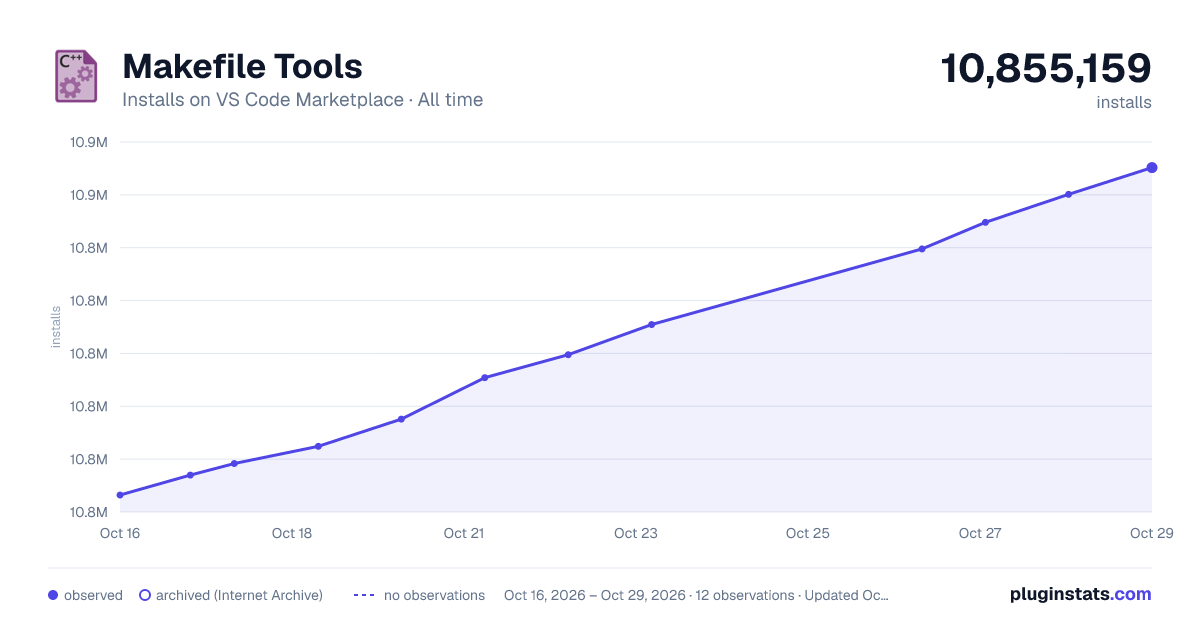

Adoption over time


7/30/90-day growth


Ranking history


Ratings over time


Listing placement


Listing placement


Filled points are observed values; hollow points come from Internet Archive snapshots of the listing page. Dashed segments span periods with no observations — values between points are not interpolated.
Each band is one page of 20. Installs on a log scale. Placement is projected from installs, so it can differ from the marketplace's own sort order. Hover a dot to see the listing.
Recent observations
Full history (4)Similar VS Code Marketplace Programming Languages plugins
All 20 Makefile Tools alternativesData source
Install counts, average rating, and rating counts come from the public Visual Studio Marketplace gallery API. Installs are cumulative and exclude updates.
Listing: https://marketplace.visualstudio.com/items?itemName=ms-vscode.makefile-tools. First seen Oct 16, 2026; last successful collection Oct 19, 2026. See the methodology.