 PluginStats
PHPUnit & Pest Test Explorer installs statistics
By Recca0120 · VS Code Marketplace · Debuggers
Run PHPUnit and Pest tests in VS Code with the native Test Explorer. Supports Docker, SSH, Laravel Sail, ParaTest, and Xdebug step-debugging.
PHPUnit & Pest Test Explorer has 296,610 recorded installs on VS Code Marketplace.
It ranks #1165 of 2,501 tracked VS Code Marketplace listings by installs.
It is rated 5.0 out of 5 from 22 ratings.
PluginStats has 4 daily observations since Oct 16, 2026; the latest is from Oct 19, 2026.
Rating: 5.00 / 5 from 22 ratings
About PHPUnit & Pest Test Explorer
PHPUnit & Pest Test Explorer for VS Code
繁體中文
Run PHPUnit and Pest tests directly in VS Code using the native Test Explorer UI.
Quick Start
1. Install the extension from the VS Code Marketplace 2. Open a PHP project that contains a phpunit.xml or phpunit.xml.dist 3. Tests appear automatically in the Test Explorer sidebar — click to run
PHPUnit and Pest are auto-detected from vendor/bin. No configuration needed in most projects.
Features
• Test Explorer integration — discover, run, and debug tests from the sidebar • PHPUnit 7 – 12 & Pest 1 – 4 — broad version support • Auto-detect binary — reads composer.json to use vendor/bin/pest for Pest projects automatically • Auto-reload — reloads all tests when phpunit.xml or composer.lock changes • Colored output — syntax-highlighted results with embedded PHP source snippets • Clickable stack traces — jump to file:line directly from error output • Remote environments — Docker, SSH, Laravel Sail, DDEV via custom commands • Multi-workspace Docker — single shared container for multiple workspace folders • Parallel execution — ParaTest support • Xdebug debugging — step-through debugging with one click • Continuous runs — auto-run tests on file changes
Settings
Add to .vscode/settings.json. All settings use the phpunit.* prefix.
Configuration Examples
Local
For most local projects, zero configuration is needed. To use a different test runner:
Docker
When running tests inside a Docker container, you need two things:
1. phpunit.command — tells the extension how to execute commands in the container 2. phpunit.paths — maps your local file paths to container paths so the extension can locate test files and parse error output
Important: ${workspaceFolder} may not resolve correctly on macOS or WSL. If you encounter path issues, replace it with the actual absolute path (e.g. /home/user/myproject).
docker exec (existing container):
docker run (ephemeral container):
Docker Compose:
If your docker-compose.yml is not in the workspace root, use the -f flag:
Docker Multi-Workspace
When using a multi-root workspace with a single shared Docker container, use ${workspaceFolderBasename} to switch directories per folder:
Each project folder is mounted separately in the container under its basename:
The command cd /${workspaceFolderBasename} switches into the correct directory before running tests. Each folder should have its own phpunit.xml — the extension auto-detects it. Do not set --configuration with an absolute container path at workspace level (e.g. --configuration=/project-a/phpunit.xml), as this causes every folder to load the same config and discover duplicate tests.
Laravel Sail
SSH
DDEV
WSL + Docker
When using Docker from a WSL workspace, use the full WSL path as the local key:
Debugging with Xdebug
1. Add a launch configuration to .vscode/launch.json:
2. Set the configuration name in settings:
3. Click the Debug Test button in the Test Explorer.
Using xdebug.start_with_request=trigger in Docker:
Breakpoints not hit? Check that: • Xdebug is configured with xdebug.mode=debug and xdebug.start_with_request=yes (or trigger) • phpunit.debuggerConfig matches the exact name in launch.json • pathMappings in launch.json correctly maps container paths to local paths • The Xdebug port is not blocked by a firewall
Commands
| Command | Description | Keybinding |
| phpunit.reload | Reload tests | — | | phpunit.run-all | Run all tests | Cmd+T Cmd+S | | phpunit.run-file | Run tests in current file | Cmd+T Cmd+F | | phpunit.run-test-at-cursor | Run test at cursor | Cmd+T Cmd+T | | phpunit.run-by-group | Run tests by group | — | | phpunit.rerun | Repeat last test run | Cmd+T Cmd+L |
Keybinding Tips
Use VS Code's runCommands to combine opening the Test Results panel with running tests in a single shortcut:
Troubleshooting
${workspaceFolder} resolves to /
On some systems (macOS, WSL), ${workspaceFolder} may not resolve correctly. Replace it with the actual absolute path in phpunit.paths:
spawn ${php} ENOENT
Usually caused by another extension (e.g. DEVSENSE PHP Tools) injecting ${php} as a literal variable. Fix:
If that doesn't help, disable conflicting PHP extensions, then re-enable PHPUnit Test Explorer first.
Paths with spaces cause errors
Ensure your phpunit.command template quotes the variables (this is the default):
Test Results panel does not open automatically after a failure
By default VS Code does not automatically reveal the Test Results panel. To open it whenever a test fails (useful for inspecting dd() output or error messages):
Other values: "openOnTestStart" (open as soon as a run starts), "neverOpen" (never open automatically).
Note: dd() output appears in the Test Results panel as raw output, since it causes the PHP process to exit before producing any structured test results.
Duplicate tests in multi-root workspace
If the same tests appear under multiple workspace folders, check your phpunit.args setting. A --configuration flag pointing to an absolute container path (e.g. --configuration=/var/www/project-a/phpunit.xml) at workspace level causes every folder to load the same phpunit.xml.
Fix: Remove --configuration from phpunit.args and let each folder auto-detect its own phpunit.xml. See the Docker Multi-Workspace section for the correct setup.
Contributing
Found a bug? Have an idea? We welcome contributions!
• Report a bug • Request a feature • Development guide
License
MIT
Description from the VS Code Marketplace listing.
- keybindings
- laravel
- pest
- php
- phpunit
- test
Where PHPUnit & Pest Test Explorer sits in the listing
Each band is one page of 20. Installs on a log scale. Placement is projected from installs, so it can differ from the marketplace's own sort order. Hover a dot to see the listing.


Charts
Images: 30d · 1y · all time · 1600×900 dark


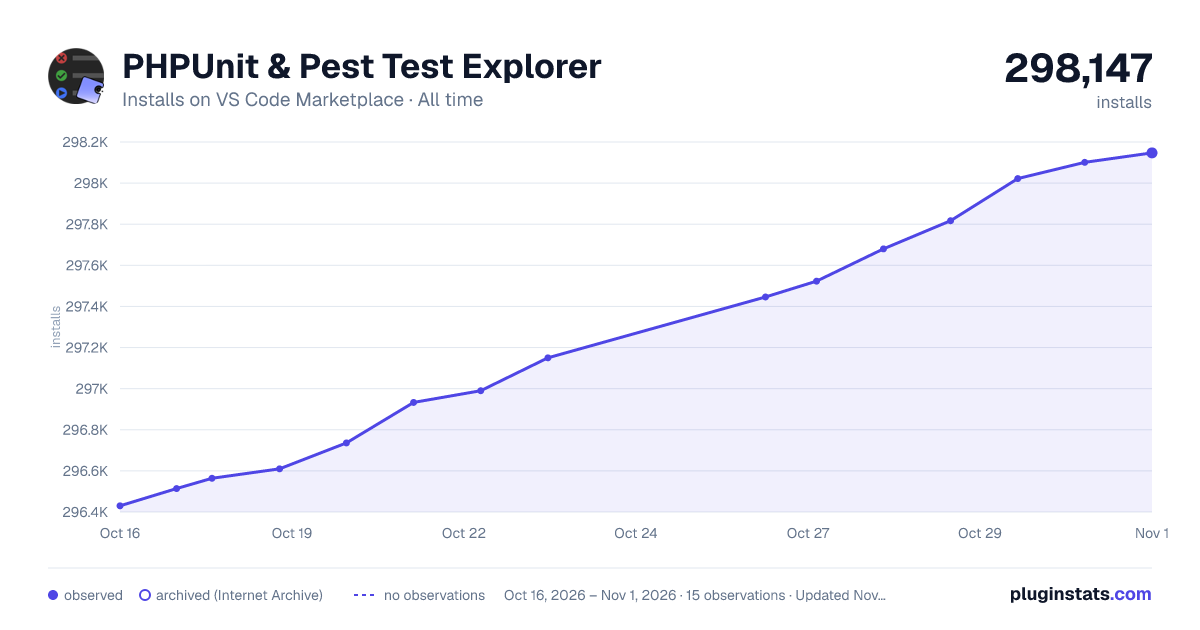

Adoption over time


7/30/90-day growth


Ranking history


Filled points are observed values; hollow points come from Internet Archive snapshots of the listing page. Dashed segments span periods with no observations — values between points are not interpolated.
Recent observations
Full history (4)Similar VS Code Marketplace Debuggers plugins
Data source
Install counts, average rating, and rating counts come from the public Visual Studio Marketplace gallery API. Installs are cumulative and exclude updates.
Listing: https://marketplace.visualstudio.com/items?itemName=recca0120.vscode-phpunit. First seen Oct 16, 2026; last successful collection Oct 19, 2026. See the methodology.