 PluginStats
learn-scaffolding installs statistics
By Microsoft (224 listings) · VS Code Marketplace · Other
A Visual Studio Code extension developed to aid with scaffolding and updating Learn modules.
learn-scaffolding has 98,115 recorded installs on VS Code Marketplace, ranking #2390 of 2,501 tracked listings.
About learn-scaffolding
README
This extension provides automation for creating a Learn module based on a pre-defined pattern and for updating module structure after creation.
The Learn team has defined several standard patterns for Learn modules, each serving a different customer need:
• Introduction modules introduce a product or technology. • Choose modules help you decide between different products or technologies. • Standard modules provide an approved sequence of unit types to help learners understand and apply concepts.
The Scaffolding extension lets content developers create a module in one of these patterns in just a few clicks, instead of having to manually create the series of folders, YAML files, and Markdown files that make up a module. Each generated unit contains required metadata, templatized content, and guidance to help users craft modules that follow Learn best practices. Finally, the extension provides automation to easily update module structure, such as adding, renaming, reordering, and deleting units.
Here's a brief demo of the basic functionality:
Update your Settings to auto-populate metadata
You can set some metadata in your VS Code extension settings so it's auto-populated when you scaffold a new module.
- In the VS Code File menu, select Preferences then Settings. 1. Expand Extensions then find Learn Scaffolding Extension Configuration. 1. Under Microsoft alias, type your Microsoft alias (without @microsoft.com) if you're a Microsoft employee. Otherwise, leave it blank. 1. Under GitHub ID, type your GitHub ID. 1. Under Default prefix, type a default prefix for your modules, such as "learn". 1. Under Default product, type the product(s) your modules will generally apply to, such as "azure". To specify multiple products, separate with a comma, such as "azure, sql". 1. Leave the Learn template repo as specified; currently there's only one, although we might support others in the future.
Now, when you scaffold a module, the following will be auto-populated based on your specifications:
• ms.author metadata will be set to your Microsoft alias. • author metadata will be set to your GitHub ID. • products metadata will be set your default product(s). • Module and unit UIDs will be prefixed with your default prefix.
Create a new module based on a pre-defined pattern
-
In the VS Code file explorer, select the parent folder where you want to create a new module. 1. Right-click and select Learn: Create new module. 1. In the pop-up menu, select the appropriate module pattern depending on the intent of your module. 1. In the text box, specify a title for you module, using the placeholder text (such as "Choose the best {product category} for {your purpose}") as a guide.
-
Press Enter. Now you'll se a child folder for your module with the following characteristics: • The folder name is the module title with certain words omitted (such as "the") or shortened (such as "application" to "app"). • The folder contains a media sub-folder for storing images. • The folder contains an index.yml file that defines the structure of the module. Some metadata is pre-populated based on your selections in Settings. The UIDs of the child units are generated based on your specified default prefix, the module title, and the standard unit titles for your chosen pattern, including placeholders you'll need to replace. • The folder contains unit YAML files based on the chosen pattern. Each unit file contains standard YAML structure, metadata, and if appropriate an included reference to a corresponding Markdown content file. The file names include a numeric prefix that defines the order of the units. • The folder contains an includes sub-folder with unit Markdown files. Each Markdown file contains a content template to help you write unit content according to Learn best practices.
For example, here's a newly scaffolded Choose module with the title "Choose the best module pattern for my module":
Rename a unit
After you scaffold a new module, you'll need to rename the units to replace the placeholders. For example, in our "Choose the best module pattern for my module" module, we'd update the unit file "2-identify-{product}-options.yml" as follows:
- Right-click the unit YAML file in VS Code file explorer and select Learn: Rename unit.
Important: All module structure updates must be initiated from the unit YAML files, not the corresponding Markdown files or the index.yml file. 1. In the pop-up text box, you'll see the current file name, minus the numeric prefix and file name extension.
- Type in the new unit file name. For example, "identify-{product}-options" might become "identify-module-pattern-options". Press Enter. 1. Next, you'll be prompted to update the module title. This is the value of the title YAML field in the unit YAML file. You can optionally type a new title, or you can cancel out. You can update the title field within the YAML file at any time. 1. The following changes are made automatically based on your input: • The name of the YAML file is updated. For example, if you typed "identify-module-pattern-options" as the new file name for "2-identify-{product}-options.yml", the new file name will be "2-identify-module-pattern-options.yml". • The corresponding Markdown file in the includes folder is renamed. For example, "2-identify-{product}-options.md" is updated to "2-identify-module-pattern-options.md". • The reference to the included Markdown file is updated in the parent YAML file. • If the module has not yet been published live, the UID under units in index.yml is also updated, such as learn.choose-the-best-module-pattern-for-my-module.identify-module-pattern-options. If the module has already been published live, placeholders should already have been removed, and UIDs won't be updated because that would break live content relationships. • If you updated the unit title, the title field in the YAML file is updated.…
Description from the VS Code Marketplace listing.
README badge
Show your rank in a README or on your website. The badge updates automatically.
Charts
Images: 30d · 1y · all time · 1600×900 dark


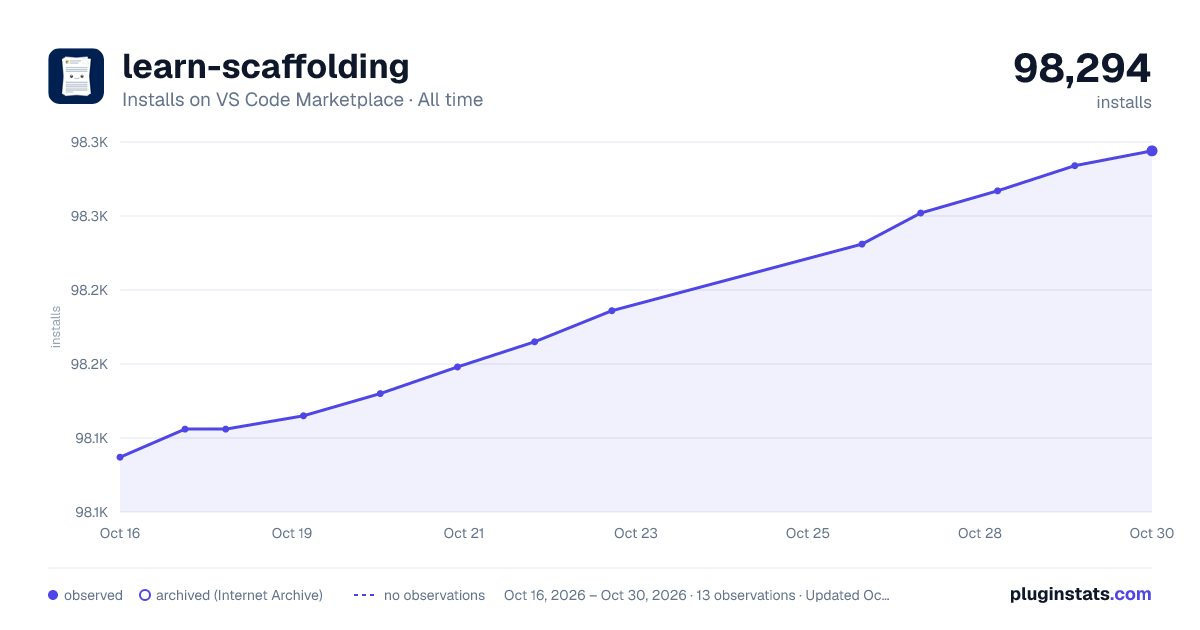

Adoption over time
7/30/90-day growth
Ranking history
Ratings over time
Listing placement
Listing placement
Filled points are observed values; hollow points come from Internet Archive snapshots of the listing page. Dashed segments span periods with no observations — values between points are not interpolated.
Each band is one page of 20. Installs on a linear scale. Placement is projected from installs, so it can differ from the marketplace's own sort order. Hover a dot to see the listing.
Recent observations
Full history (4)Similar VS Code Marketplace Other plugins
All 20 learn-scaffolding alternativesData source
Install counts, average rating, and rating counts come from the public Visual Studio Marketplace gallery API. Installs are cumulative and exclude updates.
Listing: https://marketplace.visualstudio.com/items?itemName=docsmsft.docs-scaffolding. First seen Oct 16, 2026; last successful collection Oct 19, 2026. See the methodology.