 PluginStats
Comment Anchors installs statistics
By Starlane Studios · VS Code Marketplace · Other
Place anchor tags within comments for easy file and workspace navigation.
Comment Anchors has 323,076 recorded installs on VS Code Marketplace.
It ranks #1098 of 2,501 tracked VS Code Marketplace listings by installs.
It is rated 4.9 out of 5 from 54 ratings.
PluginStats has 4 daily observations since Oct 16, 2026; the latest is from Oct 19, 2026.
Rating: 4.93 / 5 from 54 ratings
About Comment Anchors
Place anchors within comments or strings to place bookmarks within the context of your code. Anchors can be used to track TODOs, write notes, create foldable sections, or to build a simple navigation making it easier to navigate your files.
Anchors can be viewed for the current file, or throughout the entire workspace, using an easy to use sidebar.
Comment Anchors provides many configuration options, allowing you to tailor this extension to your personal workflow, and increase productivity. Check below for a complete list of features!
Maintenance notice
We do not intend to make any major changes or additions to this project ourselves as we have moved on to other projects, however we will continue to review and merge community submitted pull requests from time to time.
Read more about this here.
Changelog
The changelog can be found here
Feature breakdown
• Place anchors in any file for any language • Anchors can be viewed in the anchor list sidebar • Anchor names, colors, highlight colors, and much more can be customized (See below for examples) • Click an anchor in the anchor list to scroll it into view • Navigate to the previous or next anchor using keybinds • Quickly toggle tag visibility with commands • View anchors across your entire workspace • Scope anchors to be visible in your entire workspace, or just the current file • Place your anchors into hierarchical sections using region anchors • Group anchors into custom lists by tagging anchors with an epic • Export all anchors in your workspace as JSON or CSV
Usage
The default settings come with anchors for the following tags:
• ANCHOR - Used to indicate a section in your file • TODO - An item that is awaiting completion • FIXME - An item that requires a bugfix • STUB - Used for generated default snippets • NOTE - An important note for a specific code section • REVIEW - An item that requires additional review • SECTION - Used to define a region (See 'Hierarchical anchors') • LINK - Used to link to a file that can be opened within the editor (See 'Link Anchors')
Of course you can add your own anchors as well! In order to make an anchor, simply place the tag name in a comment, with an additional anchor message behind it. The anchor will be automatically detected and added to the Anchor List in the activity sidebar.
You can also easily navigate between the anchors in the current file using Alt + PageUp or Alt + PageDown.
Anchor types
All anchor types have their own highlight color, and background color, and more, which can all be customized in the settings. Anchor tags can be added and removed, and can share the same icon or color. You can specify and use any hex color for the highlighting and icons, giving you full control over your personal set of anchor tags.
In case you want to disable one or more default tags, simply set the enabled property to false (See configuration section).
Workspace anchors
Besides displaying anchors found in the current file, the sidebar also displays a list of tags it found across all files in your workspace. These anchors are displayed per file, and can be used as quick navigation.
The visibility of anchor tags in the workspace list can be altered using the 'scope' property on each tag (See configuration section).
Anchor epics
Epics give you the power to easily tag classes, methods, and entire sections of codes into personal lists. To get started, tag your individual anchors with an Epic to place them into a specific list. Optionally provide a sequence number to customize the ordering of your anchors.
Lazy loading
Since workspace anchors are usually scanned at startup, this can increase load time for projects containing many files and folders. In this case you can enable lazy loading mode, which will require an additional manual trigger to start the scan.
Lazy workspace loading can be enabled in the settings (See configuration section).
Hierarchical anchors
Region Anchors allow you to group relevant Comment Anchors together in regions, which can be folded within the anchor sidebar. These anchors act nearly identical to regular anchors, however they require an end tag to be specified, which is simply a tag of the same type, prefixed with an exclamation mark.
In order to mark a tag as Region Tag, set the behavior property to "region" in the tags configuration (See configuration section).
A default region tag is provided, called "SECTION"
Tag customization
Comment Anchors supports a vast range of tag customization options. All tags can be modified, including the default tags. This allows you to define tags useful for your workflow.
See the configuration section for a complete list of tag properties.
Link Anchors
Sometimes you might want to link to a file from within a comment. In these cases, a link anchor might provide to be useful to you. Using the default LINK tag you can provide a relative or absolute path to a file. These anchors will render with a clickable CodeLens line, used to quickly open it within your editor.
Custom link tags can be created by setting behavior to "link"
Linking to a line number
You can specify a line number to scroll to by appending the path with : followed by the line number.
Example: // LINK some/file.txt:50
Linking to a specific anchor
Link anchors can take you to another anchor in the target file by appending the path with # followed by the anchor id. The anchor id can be specified as an attribute.
Example: // LINK some/file.txt#my-anchor \ Takes you here: // ANCHOR[id=my-anchor] This is the destination!
You can even omit the path entirely and link directly to an anchor or line within the current file
Example: // LINK #error-handling
Display cursor position
Enable the commentAnchors.showCursor setting to display a file view entry for your current cursor position, making it even easier to see where you are in your current file relative to your anchors.
IntelliSense support
Comment Anchors can be autocompleted by IntelliSense.…
Description from the VS Code Marketplace listing.
- keybindings
Charts
Images: 30d · 1y · all time · 1600×900 dark


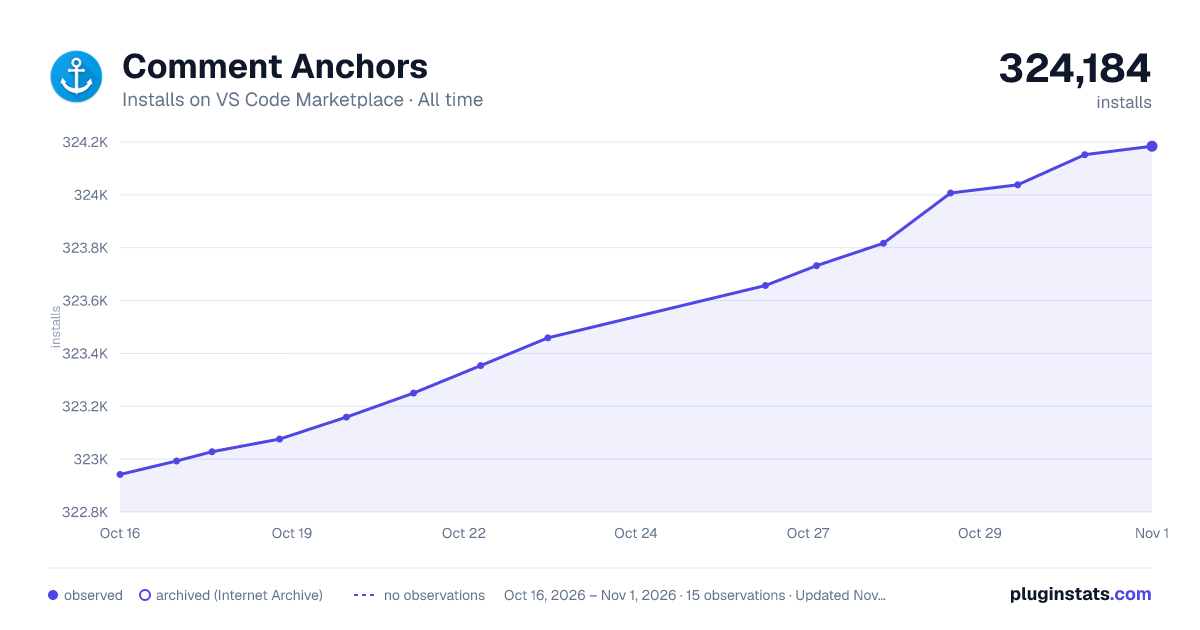

Adoption over time


7/30/90-day growth


Ranking history


Ratings over time


Listing placement


Filled points are observed values; hollow points come from Internet Archive snapshots of the listing page. Dashed segments span periods with no observations — values between points are not interpolated.
Each band is one page of 20. Installs on a log scale. Placement is projected from installs, so it can differ from the marketplace's own sort order. Hover a dot to see the listing.
Recent observations
Full history (4)Similar VS Code Marketplace Other plugins
All 20 Comment Anchors alternativesData source
Install counts, average rating, and rating counts come from the public Visual Studio Marketplace gallery API. Installs are cumulative and exclude updates.
Listing: https://marketplace.visualstudio.com/items?itemName=ExodiusStudios.comment-anchors. First seen Oct 16, 2026; last successful collection Oct 19, 2026. See the methodology.