 PluginStats
Gruvbox Material Icon Theme installs statistics
By JonathanHarty · VS Code Marketplace · Themes
Gruvbox Material Icons
Gruvbox Material Icon Theme has 130,162 recorded installs on VS Code Marketplace, ranking #2026 of 2,502 tracked listings.
Rating: 4.43 / 5 from 7 ratings
About Gruvbox Material Icon Theme
File icons
<img src="https://github.com/Jonathan-Harty/vscode-material-icon-theme/raw/HEAD/./images/fileIcons.png" alt="file icons">Folder icons
<img src="https://github.com/Jonathan-Harty/vscode-material-icon-theme/raw/HEAD/./images/folderIcons.png" alt="folder icons">Customize folder color
You can change the color of the default folder icon using the command palette:
<img src="https://raw.githubusercontent.com/PKief/vscode-material-icon-theme/master/images/set-folder-color.gif" alt="custom folder colors">or via user settings:
"material-icon-theme.folders.color": "#ef5350",
Folder themes
You can change the design of the folder icons using the command palette:
<img src="https://raw.githubusercontent.com/PKief/vscode-material-icon-theme/master/images/set-folder-theme.gif" alt="folder themes">or via user settings:
"material-icon-theme.folders.theme": "specific"
Custom icon opacity
You can set a custom opacity for the icons:
"material-icon-theme.opacity": 0.5
Custom icon saturation
If colors do not make you happy you can change the icons to have less saturation making them look grayish or completely grayscale by setting saturation to 0:
"material-icon-theme.saturation": 0.5
Custom icon associations
You can customize the icon associations directly in the user settings.
File associations
With the *.[extension] pattern you can define custom file icon associations. For example you could define an icon for *.sample and every file that ends with .sample will have the defined icon. However, not all files with the same file extension always have the same icon. For some specific file names there is a special icon. In order to overwrite all the specific file icons as well, two asterisks must be set instead of one, i.e. **.[extension].
If there's no leading * it will be automatically configured as filename and not as file extension.
"material-icon-theme.files.associations": {
    "*.ts": "typescript",
    "**.json": "json",
    "fileName.ts": "angular"
}
Custom SVG icons
It's possible to add custom icons by adding a path to an SVG file which is located relative to the extension's dist folder. However, the restriction applies that the directory in which the custom icons are located must be within the extensions directory of the .vscode folder in the user directory.
For example a custom SVG file called sample.svg can be placed in an icons folder inside of VS Code's extensions folder:
.vscode
 ┗ extensions
   ┗ icons
     ┗ sample.svg
In the settings.json the icon can be associated to a file name or file extension like this:
"material-icon-theme.files.associations": {
    "fileName.ts": "../../icons/sample"
}
Note: The custom file name must be configured in the settings without the file ending .svg as shown in the example above.
Folder associations
The following configuration can customize the folder icons. It is also possible to overwrite existing associations and create nice combinations. For example you could change the folder theme to "classic" and define icons only for the folder names you like.
"material-icon-theme.folders.associations": {
    "customFolderName": "src",
    "sample": "dist"
}
Custom SVG folder icons
Similar to the files, it is also possible to reference your own SVG icons for folder icons. Here it's important to provide two SVG files: one for the folder if it's closed and another one for the opened state. These two files - let's call them "folder-sample.svg" and "folder-sample-open.svg" - have to be placed into a directory which is relative to the extensions dist folder. This directory has to be somewhere inside of the .vscode/extensions folder.
In our example we place them into an icons folder inside of the .vscode/extensions folder:
.vscode
 ┗ extensions
   ┗ icons
     ┣ folder-sample.svg
     ┗ folder-sample-open.svg
In the settings.json the folder icons can be associated to a folder name (e.g. "src") like this:
"material-icon-theme.folders.associations": {
    "src": "../../../../icons/folder-sample"
}
Language associations
With the following configuration you can customize the language icons. It is also possible to overwrite existing associations.
"material-icon-theme.languages.associations": {
    "languageId": "iconName",
    "json": "json"
}
Available language ids:
https://code.visualstudio.com/docs/languages/identifiers#_known-language-identifiers
You can see the available icon names in the overview above.
One-click activation
After installation or update you can click on the 'Activate'-button to activate the icon theme, if you haven't already. The icons will be visible immediately.
<img src="https://raw.githubusercontent.com/PKief/vscode-material-icon-theme/master/images/oneclickactivation.png" alt="activation">Commands
Press Ctrl-Shift-P to open the command palette and type Material Icons.
Description from the VS Code Marketplace listing.
- customization
- icons
- icon-theme
- material
- theme
README badge
Show your rank in a README or on your website. The badge updates automatically.
Charts
Images: 30d · 1y · all time · 1600×900 dark


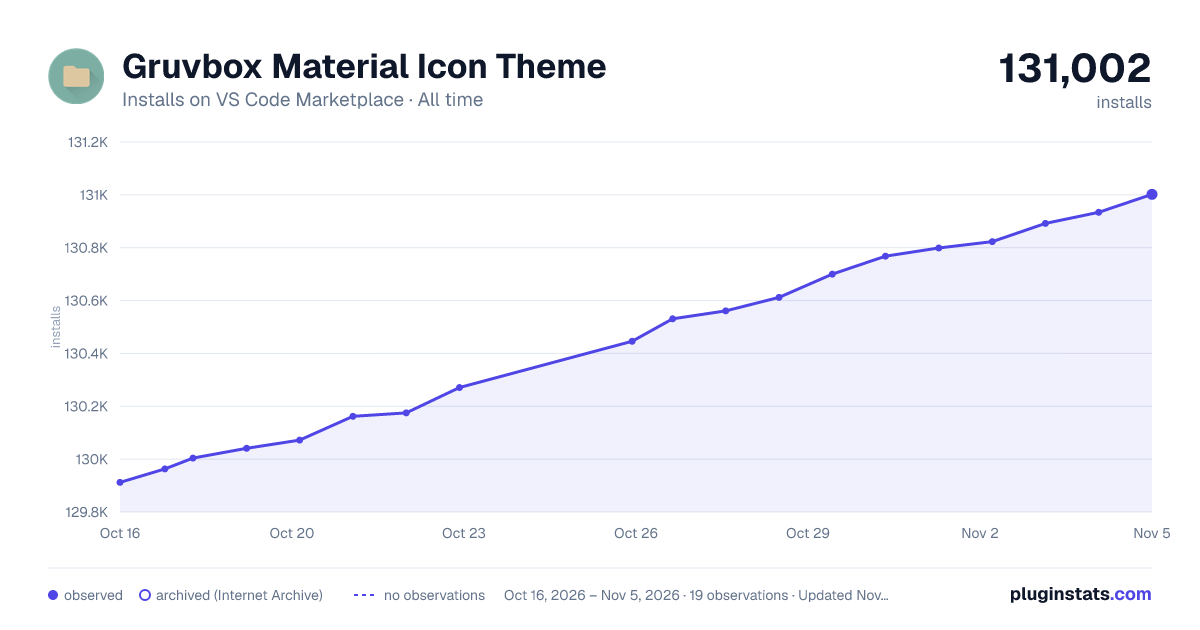

Adoption over time
7/30/90-day growth
Ranking history
Ratings over time
Listing placement
Listing placement
Filled points are observed values; hollow points come from Internet Archive snapshots of the listing page. Dashed segments span periods with no observations — values between points are not interpolated.
Each band is one page of 20. Installs on a linear scale. Placement is projected from installs, so it can differ from the marketplace's own sort order. Hover a dot to see the listing.
Recent observations
Full history (6)Similar VS Code Marketplace Themes plugins
All 20 Gruvbox Material Icon Theme alternativesData source
Install counts, average rating, and rating counts come from the public Visual Studio Marketplace gallery API. Installs are cumulative and exclude updates.
Listing: https://marketplace.visualstudio.com/items?itemName=JonathanHarty.gruvbox-material-icon-theme. First seen Oct 16, 2026; last successful collection Oct 21, 2026. See the methodology.