 PluginStats
Dev Containers installs statistics
By Microsoft (224 listings) · VS Code Marketplace · Other
Open any folder or repository inside a Docker container and take advantage of Visual Studio Code's full feature set.
Dev Containers has 42,307,069 recorded installs on VS Code Marketplace, ranking #33 of 2,501 tracked listings.
Rating: 4.05 / 5 from 60 ratings
About Dev Containers
Visual Studio Code Dev Containers
The Dev Containers extension lets you use a Docker container as a full-featured development environment. Whether you deploy to containers or not, containers make a great development environment because you can:
- Develop with a consistent, easily reproducible toolchain on the same operating system you deploy to.
- Quickly swap between different, separate development environments and safely make updates without worrying about impacting your local machine.
- Make it easy for new team members / contributors to get up and running in a consistent development environment.
- Try out new technologies or clone a copy of a code base without impacting your local setup.
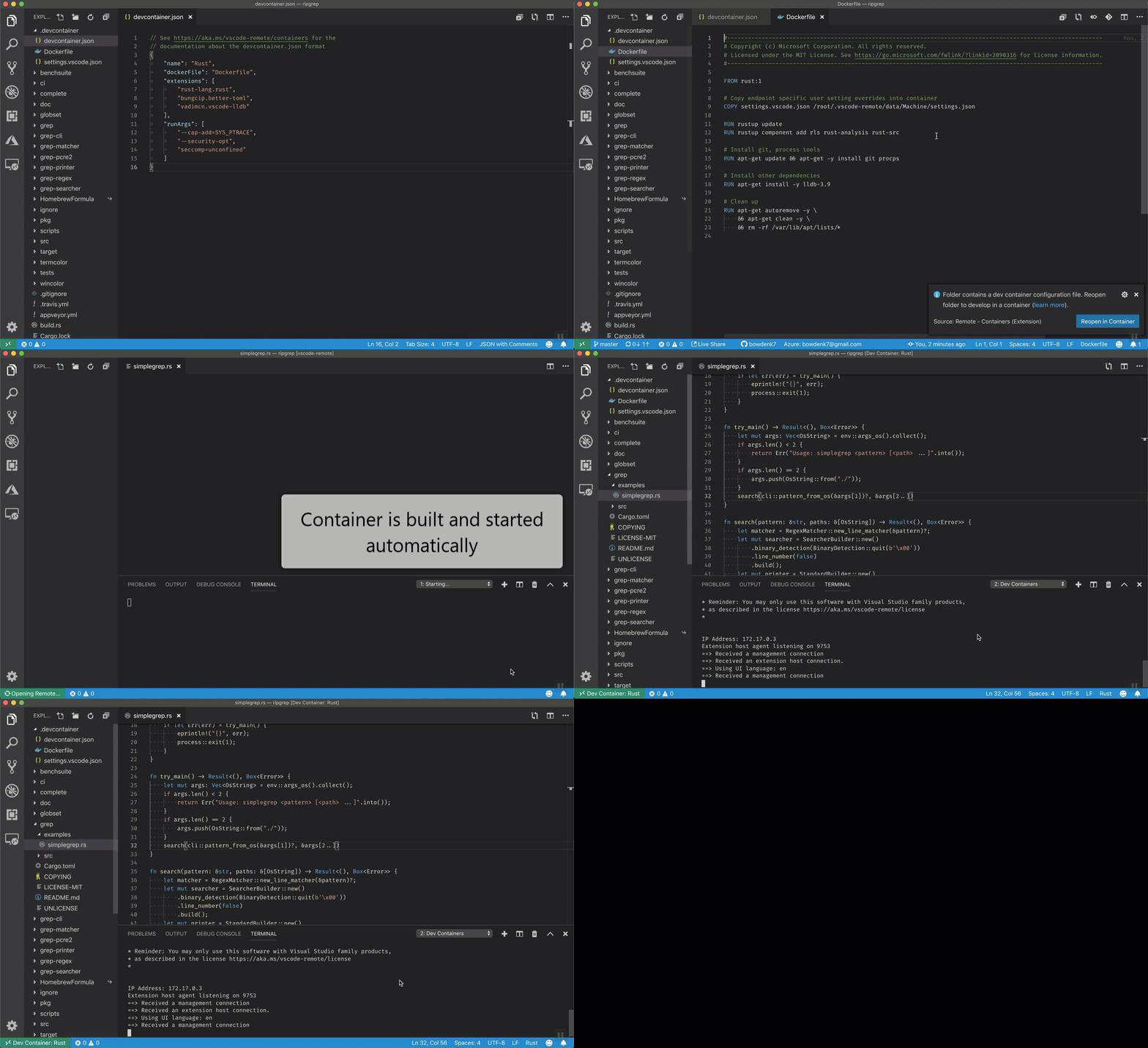
The extension starts (or attaches to) a development container running a well defined tool and runtime stack. Workspace files can be mounted into the container from the local file system, or copied or cloned into it once the container is running. Extensions are installed and run inside the container where they have full access to the tools, platform, and file system.
You then work with VS Code as if everything were running locally on your machine, except now they are separated inside a container.
System Requirements
You can use Docker with the Dev Containers extension in a few ways, including:
- Docker installed locally
- Docker installed on a remote environment
- Other Docker compliant CLIs, installed locally or remotely
- While other CLIs may work, they are not officially supported. Note that attaching to a Kubernetes cluster only requires a properly configured
kubectlCLI
- While other CLIs may work, they are not officially supported. Note that attaching to a Kubernetes cluster only requires a properly configured
You can learn more in the alternative Docker options doc.
Below are some specific ways you can configure Docker.
Local:
- Windows: Docker Desktop 2.0+ on Windows 10 Pro/Enterprise. Windows 10 Home (2004+) requires Docker Desktop 2.2+ and the WSL2 back-end. (Docker Toolbox is not supported.)
- macOS: Docker Desktop 2.0+.
- Linux: Docker CE/EE 18.06+ and Docker Compose 1.21+. (The Ubuntu snap package is not supported.)
Containers:
- x86_64 / ARMv7l (AArch32) / ARMv8l (AArch64) Debian 9+, Ubuntu 16.04+, CentOS / RHEL 7+
- x86_64 Alpine Linux 3.9+
Other glibc based Linux containers may work if they have needed prerequisites.
While ARMv7l (AArch32), ARMv8l (AArch64), and musl based Alpine Linux support is available, some extensions installed on these devices may not work due to the use of glibc or x86 compiled native code in the extension. See the Remote Development with Linux article for details.
Note that while the Docker CLI is required, the Docker daemon/service does not need to be running locally if you are using a remote Docker host.
Installation
To get started, follow these steps:
-
Install VS Code or VS Code Insiders and this extension.
-
Install and configure Docker for your operating system, using one of the paths below or an alternative Docker option, like Docker on a remote host or Docker compliant CLI.
Windows / macOS:
- Install Docker Desktop for Mac/Windows.
- If not using WSL2 on Windows, right-click on the Docker task bar item, select Settings / Preferences and update Resources > File Sharing with any locations your source code is kept. See tips and tricks for troubleshooting.
- To enable the Windows WSL2 back-end: Right-click on the Docker taskbar item and select Settings. Check Use the WSL2 based engine and verify your distribution is enabled under Resources > WSL Integration.
Linux:
- Follow the official install instructions for Docker CE/EE. If you use Docker Compose, follow the Docker Compose install directions.
- Add your user to the
dockergroup by using a terminal to run:sudo usermod -aG docker $USERSign out and back in again so this setting takes effect.
Working with Git? Here are two tips to consider:
- If you are working with the same repository folder in a container and Windows, be sure to set up consistent line endings. See tips and tricks to learn how.
- If you clone using a Git credential manager, your container should already have access to your credentials! If you use SSH keys, you can also opt-in to sharing them. See Sharing Git credentials with your container for details.
Getting started
Follow the step-by-step tutorial or if you are comfortable with Docker, follow these four steps:…
Description from the VS Code Marketplace listing.
- containers
- continueOn
- dev container
- devcontainer
- development container
- docker
- json
- jsonc
- remote
- remote development
- remote-menu
README badge
Show your rank in a README or on your website. The badge updates automatically.
Charts
Images: 30d · 1y · all time · 1600×900 dark


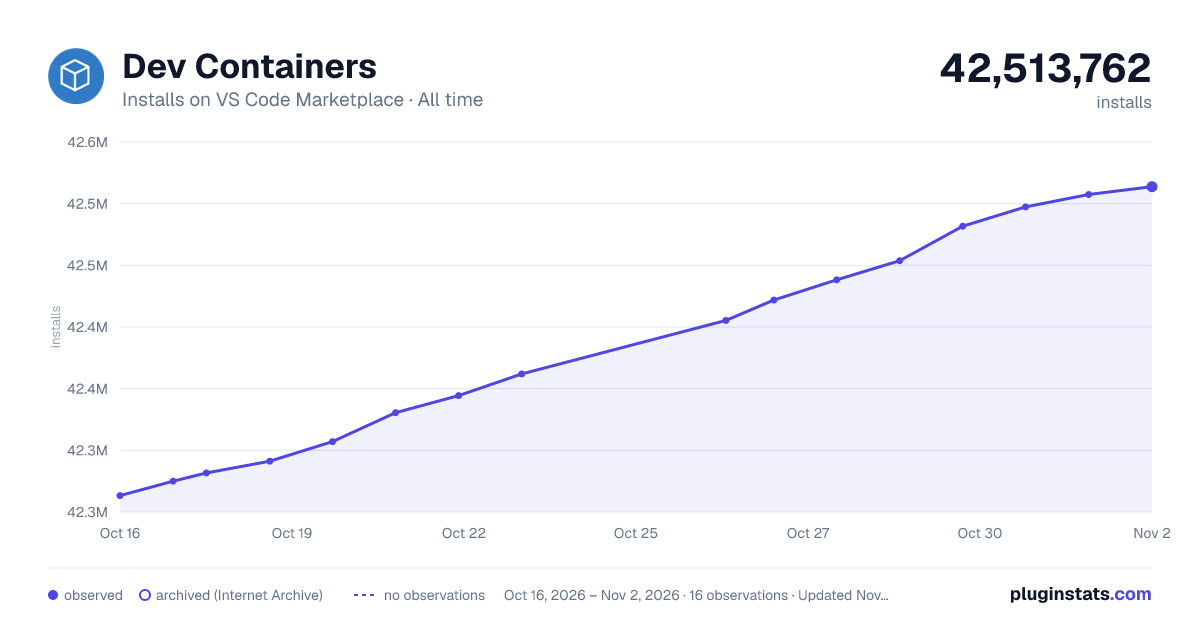

Adoption over time
7/30/90-day growth
Ranking history
Ratings over time
Listing placement
Listing placement
Filled points are observed values; hollow points come from Internet Archive snapshots of the listing page. Dashed segments span periods with no observations — values between points are not interpolated.
Each band is one page of 20. Installs on a linear scale. Placement is projected from installs, so it can differ from the marketplace's own sort order. Hover a dot to see the listing.
Recent observations
Full history (5)Similar VS Code Marketplace Other plugins
All 20 Dev Containers alternativesDev Containers on other marketplaces
Data source
Install counts, average rating, and rating counts come from the public Visual Studio Marketplace gallery API. Installs are cumulative and exclude updates.
Listing: https://marketplace.visualstudio.com/items?itemName=ms-vscode-remote.remote-containers. First seen Oct 16, 2026; last successful collection Oct 20, 2026. See the methodology.