 PluginStats
NSIS installs statistics
By idleberg (5 listings) · VS Code Marketplace · Programming Languages
Language intelligence for Nullsoft Scriptable Install System (NSIS), powered by nsis-lsp
NSIS has 126,042 recorded installs on VS Code Marketplace, ranking #2069 of 2,501 tracked listings.
Rating: 5.00 / 5 from 6 ratings
About NSIS
vscode-nsis
Language syntax, snippets, formatter and build system for Nullsoft Scriptable Install System (NSIS), with language intelligence provided by nsis-lsp.
Screenshot of NSIS in Visual Studio Code with Hopscotch theme
Features
• Language intelligence, provided by the server: • code actions • completions • document symbols • find references • go-to-definition • on-hover information • rename symbol • signature help • Language syntax for NSIS and NSIS Language Files • Snippets for core NSIS commands, variables and predefines • Snippets for core plug-ins • Snippets for core libraries (“Useful Headers”) • NSIS Diagnostics • Drunken NSIS • Formatting • Build Tools • Environment Variables • Converting between NSIS language files and JSON, using NSIS: Convert Language File
You can further extend NSIS support with snippets for third-party plug-ins.
Installation
Extension Marketplace
Launch Quick Open, paste the following command, and press Enter
ext install idleberg.nsis
CLI
With shell commands installed, you can use the following command to install the extension:
$ code --install-extension idleberg.nsis
Alternatively, you can download the packaged extension from the Open VSX Registry or install it using the ovsx command-line tool:
Released packages bundle the language server for your platform, so there is nothing else to install. On platforms without a prebuilt binary, install the server yourself and the extension will find it on your PATH:
Usage
Snippets
With most commands, you can specify available options before completion. For instance, rather than completing RequestExecutionLevel and then specifying an option, you can directly choose RequestExecutionLevel user from the completion menu.
To complete compile time commands, variables or predefines, make sure to omit special characters like !, $ and brackets:
• include completes to !include • INSTDIR completes to $INSTDIR • NSIS_VERSION completes to ${NSIS_VERSION}
However, you have to type LINE to complete to ${LINE}.
There are several special cases for your convenience:
• MB_OK completes to MessageBox MB_OK "messagebox_text" • onInit completes to a Function .onInit block • LogicLib completes to !include "LogicLib.nsh"
Drunken NSIS
Fuzzy syntax completions that try to iron out some of the inconsistencies in the NSIS language, for instance word order. The name is taken from the Sublime Text package of the same name.
Examples:
Interchangable word order of NSIS language and library functions
• ReadFile completes to FileRead • INIStrRead completes to ReadINIStr • SetSectionText completes to SectionSetText • SetLog completes to LogSet • FirstFind completes to FindFirst • ${LineFind} completes to ${FindLine}
Formatting
Scripts are formatted by the language server. To do so, run Format Document or adjust your settings for auto-formatting.
Example
The formatter is tweaked through the nsis.formatter.* settings — commentStyle, endOfLine, printWidth, singleQuote and trimEmptyLines. Indentation is not among them, since the formatter uses the editor's tabSize and insertSpaces.
Building
Before you can build, make sure makensis is in your PATH environment variable. Alternatively, you can specify the path to makensis in your user settings.
makensis
Example:
To trigger a build, select NSIS: Save & Compile” from the command-palette or use the default keyboard shortcut Ctrl+Shift+B. The strict option treats warnings as errors and can be triggered using Ctrl+Alt+Shift+B.
Wine
On macOS and Linux, makensis can be run through [Wine][wine] by enabling nsis.wine.runWithWine. The setting is ignored on Windows.
[!NOTE]
Wine only applies to compiling. The language server runs makensis directly, so diagnostics are unavailable on a Wine-only setup.
Options
You can tweak your default settings by editing your user settings.
Task Runner
If you prefer Visual Studio Code's built-in Task Runner to build scripts, you can create tasks.json in the project root using the NSIS: Create Build Task command from the command-palette.
[!NOTE]
The created Task Runner will adapt to the user settings specified in settings.json.
Environment Variables
makensis reads NSISDIR and NSISCONFDIR from the environment. Both are picked up from your system-wide environment variables, and either can be overridden per platform through the terminal.integrated.env.* setting, so a workspace that already sets them for its terminal does not have to set them a second time.
Example
[!NOTE]
Some operating systems require Visual Studio Code to be launched from terminal in order to access system-wide environment variables.
Additionally, you can pass special environment variables prefixed with NSIS_APP_ to your installer script. They will be treated like normal definitions and will be stringified at compile-time.
Example
[!NOTE]
Unlike NSISDIR and NSISCONFDIR, these are read from the environment Visual Studio Code itself was launched with. Setting them in terminal.integrated.env.* has no effect.
File Encoding
This extension defaults to UTF-8 with BOM (utf8bom) for NSIS files. If you are working with older scripts, you can override the encoding in your workspace settings:
Example
Per workspace: Add "files.encoding": "windows1252" to the [nsis] section in your .vscode/settings.json Per file: Click the encoding label in the status bar and choose Save with Encoding
Related
• node-makensis • vscode-electron-builder • atom-language-nsis
License
Files in this repository fall under the Apache 2.0 License.
Description from the VS Code Marketplace listing.
- keybindings
- language-server
- lsp
- makensis
- MakeNSISLog
- nlf
- nsis
- nsis-injection
- NSISLanguageFile
- snippet
README badge
Show your rank in a README or on your website. The badge updates automatically.
Charts
Images: 30d · 1y · all time · 1600×900 dark


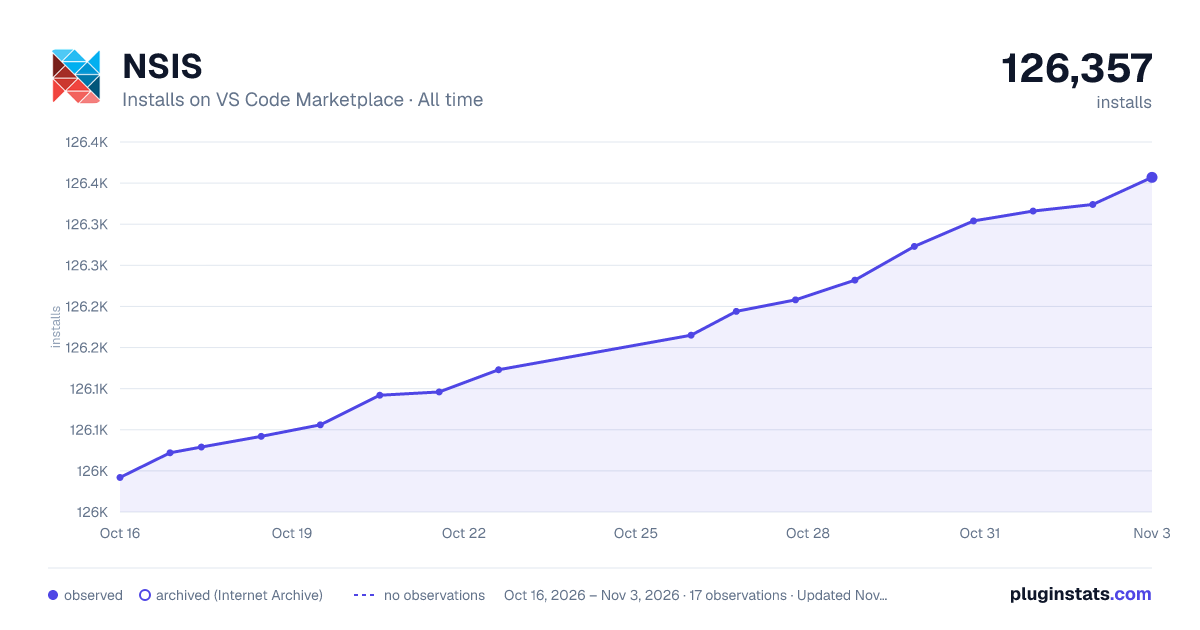

Adoption over time
7/30/90-day growth
Ranking history
Ratings over time
Listing placement
Listing placement
Listing placement
Listing placement
Filled points are observed values; hollow points come from Internet Archive snapshots of the listing page. Dashed segments span periods with no observations — values between points are not interpolated.
Each band is one page of 20. Installs on a linear scale. Placement is projected from installs, so it can differ from the marketplace's own sort order. Hover a dot to see the listing.
Recent observations
Full history (4)Similar VS Code Marketplace Programming Languages plugins
All 20 NSIS alternativesData source
Install counts, average rating, and rating counts come from the public Visual Studio Marketplace gallery API. Installs are cumulative and exclude updates.
Listing: https://marketplace.visualstudio.com/items?itemName=idleberg.nsis. First seen Oct 16, 2026; last successful collection Oct 19, 2026. See the methodology.