 PluginStats
Data Wrangler installs statistics
By Microsoft (224 listings) · VS Code Marketplace · Data Science
Data viewing, cleaning and preparation for tabular datasets
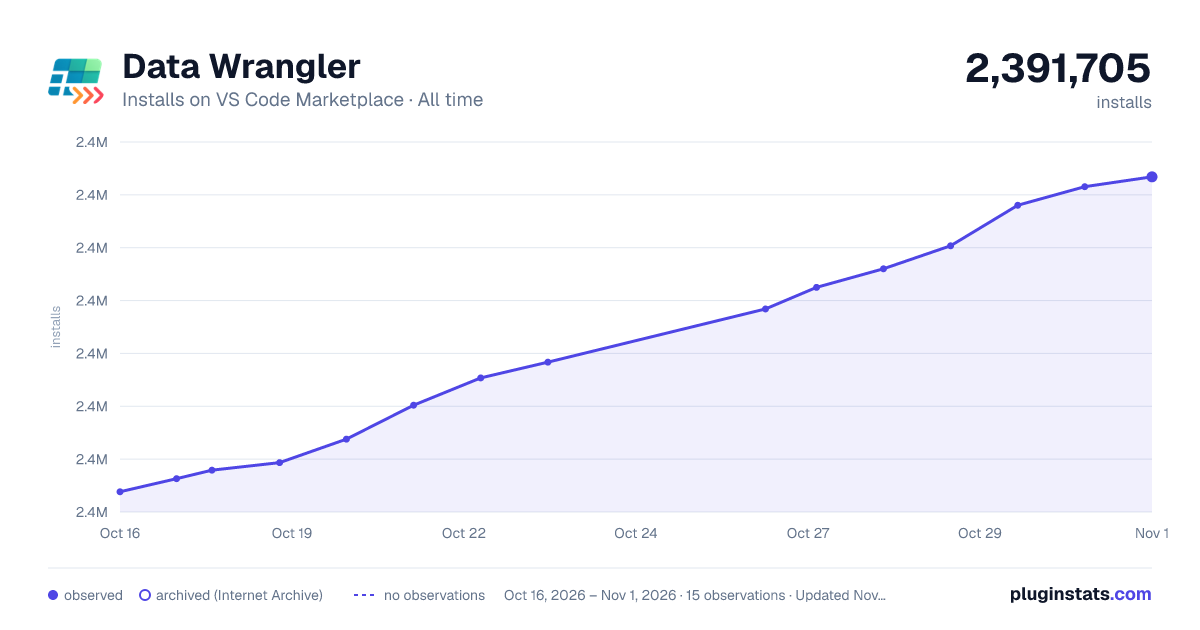
Data Wrangler has 2,364,670 recorded installs on VS Code Marketplace.
It ranks #307 of 2,501 tracked VS Code Marketplace listings by installs.
It is rated 4.5 out of 5 from 74 ratings.
PluginStats has 4 daily observations since Oct 16, 2026; the latest is from Oct 19, 2026.
Rating: 4.53 / 5 from 74 ratings
About Data Wrangler
Data Wrangler Extension for Visual Studio Code
• 📊 Visualize & filter large tabular datasets • 🧹 One-click transforms (fill, drop, type-cast…) • 🐼 Automatic Pandas code preview & export • 🚀 Launch from CSV/Parquet/Excel/Jsonl files or Jupyter notebooks • 🤖 GitHub Copilot integration: just ask it to perform the data operations you need • ⚙️ FlashFill integration: Provide an example to automatically fill all remaining rows in a column
Data Wrangler is a data viewing and cleaning tool that is integrated into VS Code and VS Code Jupyter Notebooks. It provides a rich user interface to view and analyze your data, show insightful column statistics and visualizations, and can automatically generate Pandas code as you clean and transform the data if that's your goal.
Data Exploration
Data Preparation
The goal of this page is to help you quickly get up and running with Data Wrangler.
Set up your environment
1. If you have not already done so, install Python (Note: Data Wrangler only supports Python version 3.8 or higher). 2. Install the Data Wrangler extension
When you launch Data Wrangler for the first time, it asks you which Python kernel you would like to connect to. It also checks your machine and environment to see if the required Python packages are installed, such as Pandas.
Note: to use a local Python interpreter as a runtime, you will need to first install both the Jupyter and Python extensions.
Open Data Wrangler
Anytime you are in Data Wrangler, you are in a _sandboxed_ environment, meaning you are able to safely explore and transform the data. The original dataset is not modified until you explicitly export your changes.
Data Wrangler with Jupyter Notebooks
If you have a Pandas data frame in your notebook, you can explore its contents using Data Wrangler without leaving the notebook’s output cell since it is seamlessly integrated into one experience.
You’ll also see an Open 'df' in Data Wrangler button (where df is the variable name of your data frame) appear in bottom of the cell after running any of df.head(), df.tail(), display(df), print(df), and df. This button launches Data Wrangler in full screen mode.
Launch Data Wrangler directly from a file
You can also launch Data Wrangler directly from a local file (such as a .csv). To do so, open any folder in VS Code that contains the file you’d like to open. In the File Explorer view, right click the file and click Open in Data Wrangler.
UI tour
Data Wrangler has two modes when working with your data. The details for each mode are explained in the subsequent sections below.
1. Viewing mode: The viewing mode optimizes the interface for you to quickly view, filter and sort your data. This mode is great for doing initial exploration on the dataset. 2. Editing mode: The Editing mode optimizes the interface for you to apply transformations, cleaning, or modifications to your dataset. As you apply these transformations in the interface, Data Wrangler automatically generates the relevant Pandas code, and this can be exported back into your notebook for reuse.
Note: For notebook files, Data Wrangler opens by default in the Viewing mode. You can change this behavior in the Settings editor kb(workbench.settings.dataWrangler.startInEditModeForNotebookEntrypoints). For other file types, the current default is Editing mode only.
Viewing mode interface
1. The Data Summary panel shows detailed summary statistics for your overall dataset or a specific column, if one is selected.
2. You can apply any Data Filters/Sorts on the column from the header menu of the column.
3. Toggle between the Viewing or Editing mode of Data Wrangler to access the built-in data operations.
4. The Quick Insights header is where you can quickly see valuable information about each column. Depending on the datatype of the column, quick insights shows the distribution of the data or the frequency of datapoints, as well as missing and distinct values.
5. The Data Grid gives you a scrollable pane where you can view your entire dataset.
Editing mode interface
Switching to Editing mode enables additional functionality and user interface elements in Data Wrangler. In the following screenshot, we use Data Wrangler to replace the missing values in the last column with the median of that column.
1. The Operations panel is where you can search through all of Data Wrangler’s built-in data operations. The operations are organized by category.
2. The Cleaning Steps panel shows a list of all the operations that have been previously applied. It enables the user to undo specific operations or edit the _most recent_ operation. Selecting a step will highlight the changes in the data grid and will show the generated code associated with that operation.
3. The Export Menu lets you export the code back into a Jupyter Notebook or export the data into a new file.
4. When you have an operation selected and are previewing its effects on the data, the grid is overlayed with a data diff view of the changes you made to the data.
5. The Code Preview section shows the Python and Pandas code that Data Wrangler has generated when an operation is selected. It remains empty when no operation is selected. You can edit the generated code, which results in the data grid highlighting the effects on the data.
Example: Replace missing values in your dataset
Given a dataset, one of the common data cleaning tasks is to handle any missing values that lie within the data. The example below shows how Data Wrangler can be used to replace the missing values in a column with the median value of that column. While the transformation is done through the interface, Data Wrangler also automatically generates the Python and Pandas code required for the replacement of missing values.…
Description from the VS Code Marketplace listing.
- Business Intelligence
- charts
- code generation
- code generator
- csv
- data
- data analysis
- Data cleaning
- data cleansing
- data editor
- data exploration
- data export
- data frame
- data import
- data prep
- data preparation
- data quality
- Data Science
- data summary
- data table
Charts
Images: 30d · 1y · all time · 1600×900 dark
Adoption over time
7/30/90-day growth
Ranking history
Ratings over time
Listing placement
Listing placement
Filled points are observed values; hollow points come from Internet Archive snapshots of the listing page. Dashed segments span periods with no observations — values between points are not interpolated.
Each band is one page of 20. Installs on a log scale. Placement is projected from installs, so it can differ from the marketplace's own sort order. Hover a dot to see the listing.
Recent observations
Full history (4)Similar VS Code Marketplace Data Science plugins
All 20 Data Wrangler alternatives




Data source
Install counts, average rating, and rating counts come from the public Visual Studio Marketplace gallery API. Installs are cumulative and exclude updates.
Listing: https://marketplace.visualstudio.com/items?itemName=ms-toolsai.datawrangler. First seen Oct 16, 2026; last successful collection Oct 19, 2026. See the methodology.