 PluginStats
Snowflake installs statistics
By Snowflake (3 listings) · VS Code Marketplace · Programming Languages
Connect to Snowflake, write and execute sql queries, and view results without leaving VS Code.
Snowflake has 430,935 recorded installs on VS Code Marketplace.
It ranks #923 of 2,501 tracked VS Code Marketplace listings by installs.
It is rated 4.1 out of 5 from 58 ratings.
PluginStats has 4 daily observations since Oct 16, 2026; the latest is from Oct 19, 2026.
Rating: 4.10 / 5 from 58 ratings
About Snowflake
Snowflake
This extension enables you to connect to Snowflake, write and execute sql queries, and view results without leaving VS Code.
Features
• CoCo • Chat with Snowflake's AI coding agent without leaving VS Code • Generate, explain, and fix SQL and Python • Attach files, selections, and statements to the conversation as context • Snowflake SQL Intellisense • Autocompletion for object names, keywords, and built-in functions • Signature help for built-in functions • Documentation for keywords and built-in functions on hover • Accounts & Sessions • Connect to and quickly switch between multiple Snowflake accounts • View and set role, database, schema, and warehouse for the active session • Enable secondary roles for the active session • Object Explorer • View detailed information on items within the explorer, grouped by database kind. • Copy the object name to your clipboard for use in query authoring • Stage Operations • LIST stage contents • GET files from a stage • PUT files and folders to an internal stage • Query Execution • Execute single or multi-statement queries • Query History • View and sort query results • Export query results to a CSV file • View history of executed queries and their results • Copy previously executed queries • Snowpark Python Support • View and sort query results • Export query results to a CSV file • View history of executed queries and their results • Copy previously executed queries • Native Apps • Navigate to and view local and deployed objects in your Snowflake Native Apps projects • Run, deploy, open, and teardown projects with one click • Modify environment variable overrides for templating and deployment • Snowpark Checkpoints • View checkpoints in the current workspace • Add, run, clear and restore checkpoints • SnowConvert Migration Assistant • Resolve SnowConvert migration issues (EWIs, FDMs, PRFs) with AI-powered assistance • Multiple interaction methods: Issues panel, CodeLens integration, and interactive chat • Configurable AI model preferences with automatic fallback • Comprehensive explanations and suggested fixes using Snowflake Cortex AI
CoCo
Snowflake CoCo is an AI-driven intelligent agent integrated into the Snowflake platform, optimized for complex data engineering, analytics, machine learning, and agent-building tasks. It uses an autonomous agent framework to interact directly with your Snowflake environment, with deep understanding of Snowflake's Role-Based Access Control (RBAC), schemas, and best practices.
View our online documentation for CoCo here.
Intellisense
This extension provides autocomplete support for database object names, built-in functions, and Snowflake SQL keywords. Database, schema, and table name suggestions will show up as you type your query.
Keywords and object names display first in the list, followed by built-in functions.
Function parameters will be highlighted as you type, and a link to the function documentation is available in the info panel.
With your cursor inside an identifier, right click and select Snowflake: View Object Details to view details for that object.
Accounts & Sessions
Located in the Activity Bar, the Account view lets you authenticate to Snowflake and switch between multiple accounts.
Once logged in, you'll be able to see and change your active database, schema, role, and warehouse.
Object Explorer
Located in the Activity Bar, the Object Explorer provides a hierarchical view of your database and application objects:
• Schemas • Tables • Views • Stages • Pipes • Streams • Tasks • Functions • Procedures
You can copy the object name to your clipboard by clicking the inline action icon on the right of the highlighted line. Clicking on an object will open up the object details view in the Panel, displaying additional information for each object.
You can also search for database objects using the search bar at the top of the Object Explorer. To turn this feature off, go to user settings and disable Object Explorer: Search.
Stage Operations
When you expand a stage within the Object Explorer, you will be able to LIST all the files contained within that stage. To GET files, use the available download buttons to download an entire stage, a directory, or a single file. If you are interacting with an internal stage, you can also use the upload button to PUT a single file, multiple files, or an entire directory into the stage.
Query Execution
You can use the inline "Execute" links to execute a given statement.
To execute multiple queries, select the ones you want to run and press CMD/CTRL+Enter. You can also use the "Execute All Statements" button in the upper right corner of the editor window to run all queries in the current file.
Query results will be displayed in the Panel.
Query Results
When you click on a cell in the results table, the content of that cell will be displayed to the right. If you wish to select multiple cells or entire columns, you can use SHIFT or CMD/CTRL. Additionally, you can select all columns and rows by using the checkbox located in the upper-left corner of the results grid.
Located in the upper-right corner, there are three buttons:
• The info icon can be used to toggle the visibility of the query and cell details sidebar. • The save icon can be used to save the local results and is limited to the number of rows shown in the results view. • The download icon can be used to download the full result to disk as a CSV, provided that the results are still cached. For persisted query results of all sizes, the cache expires after 24 hours.
There are CSV Export configuration settings available under the user setting Export CSV.
Dragging a column header allows you to rearrange the column order. Right-clicking on a column header will allow you to sort, hide, or freeze that column.
Query History…
Description from the VS Code Marketplace listing.
- keybindings
- python
- snippet
- SnowflakeSQL
- snowflake-sql
- sql
- yaml
- YAMLJinjaTemplate
Where Snowflake sits in the listing
Each band is one page of 20. Installs on a log scale. Placement is projected from installs, so it can differ from the marketplace's own sort order. Hover a dot to see the listing.


Charts
Images: 30d · 1y · all time · 1600×900 dark


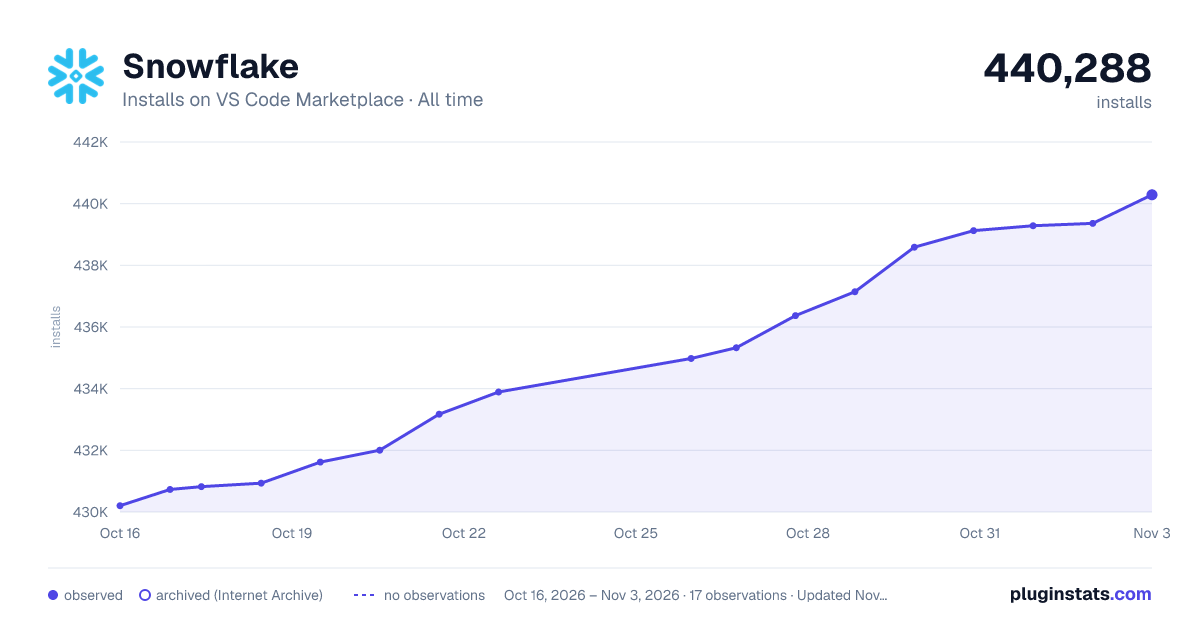

Adoption over time


7/30/90-day growth


Filled points are observed values; hollow points come from Internet Archive snapshots of the listing page. Dashed segments span periods with no observations — values between points are not interpolated.
Recent observations
Full history (4)Similar VS Code Marketplace Programming Languages plugins
Data source
Install counts, average rating, and rating counts come from the public Visual Studio Marketplace gallery API. Installs are cumulative and exclude updates.
Listing: https://marketplace.visualstudio.com/items?itemName=snowflake.snowflake-vsc. First seen Oct 16, 2026; last successful collection Oct 19, 2026. See the methodology.