 PluginStats
Paste Image installs statistics
By mushan · VS Code Marketplace · Other
paste image from clipboard directly
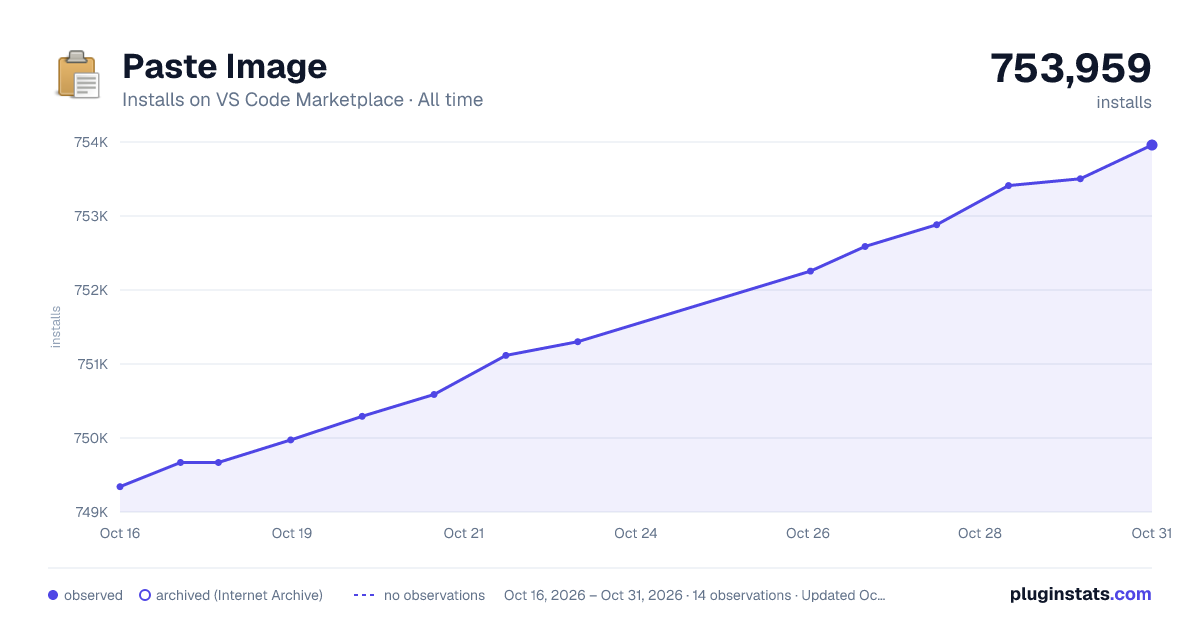
Paste Image has 749,974 recorded installs on VS Code Marketplace.
It ranks #654 of 2,501 tracked VS Code Marketplace listings by installs.
It is rated 4.8 out of 5 from 51 ratings.
PluginStats has 4 daily observations since Oct 16, 2026; the latest is from Oct 19, 2026.
Rating: 4.80 / 5 from 51 ratings
About Paste Image
Paste Image
Paste image directly from clipboard to markdown/asciidoc(or other file)!
Support Mac/Windows/Linux! And support config destination folder.
Now you can enable pasteImage.showFilePathConfirmInputBox to modify file path before save:
Usage
1. capture screen to clipboard 2. Open the command palette: Ctrl+Shift+P (Cmd+Shift+P on Mac) 3. Type: "Paste Image" or you can use default keyboard binding: Ctrl+Alt+V (Cmd+Alt+V on Mac). 4. Image will be saved in the folder that contains current editing file 5. The relative path will be paste to current editing file
Config
• pasteImage.defaultName
The default image file name.
The value of this config will be pass to the 'format' function of moment library(a js time manipulation library), you can read document https://momentjs.com/docs/#/displaying/format/ for advanced usage.
And you can use variable:
• ${currentFileName}: the current file name with ext. • ${currentFileNameWithoutExt}: the current file name without ext.
Default value is Y-MM-DD-HH-mm-ss.
• pasteImage.path
The destination to save image file. You can use variable: • ${currentFileDir}: the path of directory that contain current editing file. • ${projectRoot}: the path of the project opened in vscode. • ${currentFileName}: the current file name with ext. • ${currentFileNameWithoutExt}: the current file name without ext.
Default value is ${currentFileDir}.
• pasteImage.basePath
The base path of image url. You can use variable: • ${currentFileDir}: the path of directory that contain current editing file. • ${projectRoot}: the path of the project opened in vscode. • ${currentFileName}: the current file name with ext. • ${currentFileNameWithoutExt}: the current file name without ext.
Default value is ${currentFileDir}.
• pasteImage.forceUnixStyleSeparator
Force set the file separator styel to unix style. If set false, separator styel will follow the system style. Default is true.
• pasteImage.prefix
The string prepend to the resolved image path before paste.
Default is "".
• pasteImage.suffix
The string append to the resolved image path before paste.
Default is "".
• pasteImage.encodePath
How to encode image path before insert to editor. Support options:
• none: do nothing, just insert image path to text • urlEncode: url encode whole image path • urlEncodeSpace: url encode only space character(sapce to %20)
Defalut is urlEncodeSpace.
• pasteImage.namePrefix
The string prepend to the image file name.
You can use variable: • ${currentFileDir}: the path of directory that contain current editing file. • ${projectRoot}: the path of the project opened in vscode. • ${currentFileName}: the current file name with ext. • ${currentFileNameWithoutExt}: the current file name without ext.
Default is "".
• pasteImage.nameSuffix
The string append to the image name.
You can use variable: • ${currentFileDir}: the path of directory that contain current editing file. • ${projectRoot}: the path of the project opened in vscode. • ${currentFileName}: the current file name with ext. • ${currentFileNameWithoutExt}: the current file name without ext.
Default is "".
• pasteImage.insertPattern
The pattern of string that would be pasted to text.
You can use variable:
• ${imageFilePath}: the image file path, with pasteImage.prefix, pasteImage.suffix, and url encoded. • ${imageOriginalFilePath}: the image file path. • ${imageFileName}: the image file name with ext. • ${imageFileNameWithoutExt}: the image file name without ext. • ${currentFileDir}: the path of directory that contain current editing file. • ${projectRoot}: the path of the project opened in vscode. • ${currentFileName}: the current file name with ext. • ${currentFileNameWithoutExt}: the current file name without ext. • ${imageSyntaxPrefix}: in markdown file it would be , in asciidoc file it would be [], in other file it would be empty string
Defalut is ${imageSyntaxPrefix}${imageFilePath}${imageSyntaxSuffix}.
• pasteImage.showFilePathConfirmInputBox
Enabling this boolean setting will make Paste Image ask you to confirm the file path(or file name). This is useful if you want to change the file path of the image you are currently pasting. Default is false.
• pasteImage.filePathConfirmInputBoxMode • fullPath: show full path in inputBox, so you can change the path or name. Defautl value. • onlyName: show only file name in inputBox, so it's easy to change name.
Config Example
I use vscode to edit my hexo blog. The folder struct like this:
I want to save all image in blog/source/img, and insert image url to article. And hexo will generate blog/source/ as the website root, so the image url shoud be like /img/xxx.png. So I can config pasteImage in blog/.vscode/setting.json like this:
If you want to save image in separate directory:
If you want to save image with article name as prefix:
If you want to use html in markdown:
Format
File name format
If you selected some text in editor, then extension will use it as the image file name. The selected text can be a sub path like subFolder/subFolder2/nameYouWant.
If not the image will be saved in this format: "Y-MM-DD-HH-mm-ss.png". You can config default image file name by pasteImage.defaultName.
File link format
When you editing a markdown, it will pasted as markdown image link format ``.
When you editing a asciidoc, it will pasted as asciidoc image link format image::imagePath[].
In other file, it just paste the image's path.
Now you can use configuration pasteImage.insertPattern to config the fomat of file link.
Contact
If you have some any question or advice, Welcome to issue
TODO…
Description from the VS Code Marketplace listing.
- image
- keybindings
- markdown
- paste
- paste image
Where Paste Image sits in the listing
Each band is one page of 20. Installs on a log scale. Placement is projected from installs, so it can differ from the marketplace's own sort order. Hover a dot to see the listing.


Charts
Images: 30d · 1y · all time · 1600×900 dark



Adoption over time


7/30/90-day growth


Ranking history


Filled points are observed values; hollow points come from Internet Archive snapshots of the listing page. Dashed segments span periods with no observations — values between points are not interpolated.
Recent observations
Full history (4)Similar VS Code Marketplace Other plugins
Data source
Install counts, average rating, and rating counts come from the public Visual Studio Marketplace gallery API. Installs are cumulative and exclude updates.
Listing: https://marketplace.visualstudio.com/items?itemName=mushan.vscode-paste-image. First seen Oct 16, 2026; last successful collection Oct 19, 2026. See the methodology.