 PluginStats
Azure Resources installs statistics
By Microsoft (224 listings) · VS Code Marketplace · Azure
An extension for viewing and managing Azure resources.
Azure Resources has 7,730,551 recorded installs on VS Code Marketplace.
It ranks #119 of 2,501 tracked VS Code Marketplace listings by installs.
It is rated 2.1 out of 5 from 8 ratings.
PluginStats has 4 daily observations since Oct 16, 2026; the latest is from Oct 19, 2026.
Rating: 2.13 / 5 from 8 ratings
About Azure Resources
Azure Resources for Visual Studio Code (Preview)
View and manage Azure resources directly from VS Code.
Sign up today for your free Azure account and receive 12 months of free popular services, $200 free credit and 25+ always free services 👉 Start Free.
Move to built-in VS Code authentication
The Azure Resources extension now uses the built-in VS Code Microsoft authentication provider to authenticate with Azure, and no longer depends on the Azure Account extension. This move increases the reliability of Azure authentication, especially when using a proxy.
How to Sign In
Sign in by selecting the "Sign in to Azure..." item in the Azure Resources view.
Note: Sessions won't be migrated from Azure Account to the new built-in authentication. This means you will have to sign in once Azure Resources updates to v0.8.0.
You can also sign in using the new "Azure: Sign In" command contributed by the Azure Resources extension. Note: make sure you don't mistake it for the old Azure Account "Azure: Sign In" command.
How to Sign Out
Sign out in the Accounts menu located in the bottom left of your VS Code window.
Filter Subscriptions
You can filter the displayed subscriptions just as before, by selecting the Filter icon on any subscription. Previously filtered subscriptions will not be migrated automatically.
The filtered subscriptions are stored in the new azureResourceGroups.selectedSubscriptions setting.
Manage Accounts & Tenants
You can use the Accounts and Tenants view to manage and authenticate tenants. By checking and unchecking tenants, subscriptions within the Resources view and subscription filter will be filtered out.
Sign In to another account
With the Accounts & Tenants view we have also added multi-account support. You can sign into a new account by clicking the + icon in the right corner of the view.
Sign In to a Specific Directory/Tenant
Within the tenants view you can now Sign In to a specific tenant by checking an unauthenticated tenant.
Users are still able to use the "Sign in to Tenant (Directory)" along with the tenants view. This is useful for directories/tenants that require MFA. Executing this command will show a menu with a list of unauthenticated directories. If the list is empty, then sessions exist for each directory already.
Using Sovereign Clouds
To connect to a sovereign cloud users can click the gear button on the right side of the tenants view. This will bring up a list of sovereign clouds and once chosen the microsoft-sovereign-cloud.environment setting will automatically be set.
Support for vscode.dev
The Azure Resources extension fully supports running on vscode.dev and github.dev. This means you can use the Azure Resources extension to manage your Azure resources directly from your browser! Note that this does not require the Azure Accounts extension and uses VS Code's built-in authentication provider.
Features
Create New Project with Copilot
Turn a one-sentence idea into a running, Azure-ready application. The extension drives GitHub Copilot through a fixed pipeline of specialized agents — plan → scaffold → integrate → debug → deploy — and surfaces each step in a native VS Code webview, so you review and approve the work as it happens.
Start it from the Azure Project view in the Explorer sidebar (or an empty window's welcome view) by clicking Create New Project With Copilot.
📖 Read the full guide — what each stage does, the artifacts it writes, and how to troubleshoot a run.
Resource and Workspace views
Use the Resources explorer to create and manage Azure resources. Use the Workspace explorer to create files and deploy.
Grouping
Change the way resources are grouped to fit your workflow.
Activity Log
View all of your recent activities and quickly access resources you've recently created in the Activity Log.
Create Resources
Create an Azure resource from your installed extensions directly in VS Code.
Azure Cloud Shell
Azure Cloud Shell instances can be started via the terminal view in VS Code. To begin, click the dropdown arrow in the terminal view and select from either Azure Cloud Shell (Bash) or Azure Cloud Shell (PowerShell).
If this is your first time using the Cloud Shell, the following notification will appear prompting you to set it up.
The Cloud Shell will load in the terminal view once you've finished configuring it.
You may also upload files to Cloud Shell using the Azure: Upload to Cloud Shell command.
Azure Extensions
Install these extensions to enable additional resource-specific features.
• Azure Functions • Azure App Service • Azure Static Web Apps • Azure Databases • Azure Storage • Azure Virtual Machines • Azure Spring Apps • Azure Logic Apps
Troubleshooting
"unable to get local issuer certificate" on a corporate network
If you're on a corporate network that performs HTTPS/SSL inspection (for example Zscaler, Netskope, Cisco Umbrella, or an internal certificate authority), you may see errors like unable to get local issuer certificate or self-signed certificate in certificate chain in the Azure Resources output channel, and resources may fail to load.
This happens because the inspection proxy re-signs TLS traffic with your organization's root CA. Signing in uses VS Code's built-in Microsoft authentication, which respects VS Code's proxy and certificate settings, but the extension's Azure management (ARM) calls run in the extension-host Node.js process, which by default does not trust certificates from the operating system store. Node.js therefore rejects the re-signed certificate.
To fix it, tell Node.js and VS Code about your corporate root CA:
1. Export your corporate root CA as a PEM (.pem/.crt) file. Your IT department can provide this, or you can export it from the OS certificate store. If you have multiple CAs, concatenate them into a single PEM file.
2. Set the NODE_EXTRA_CA_CERTS environment variable to the full path of that file, then restart VS Code so the extension host picks it up:…
Description from the VS Code Marketplace listing.
- Azure
- chat-participant
- keybindings
- multi-root ready
- Resource Groups
Charts
Images: 30d · 1y · all time · 1600×900 dark


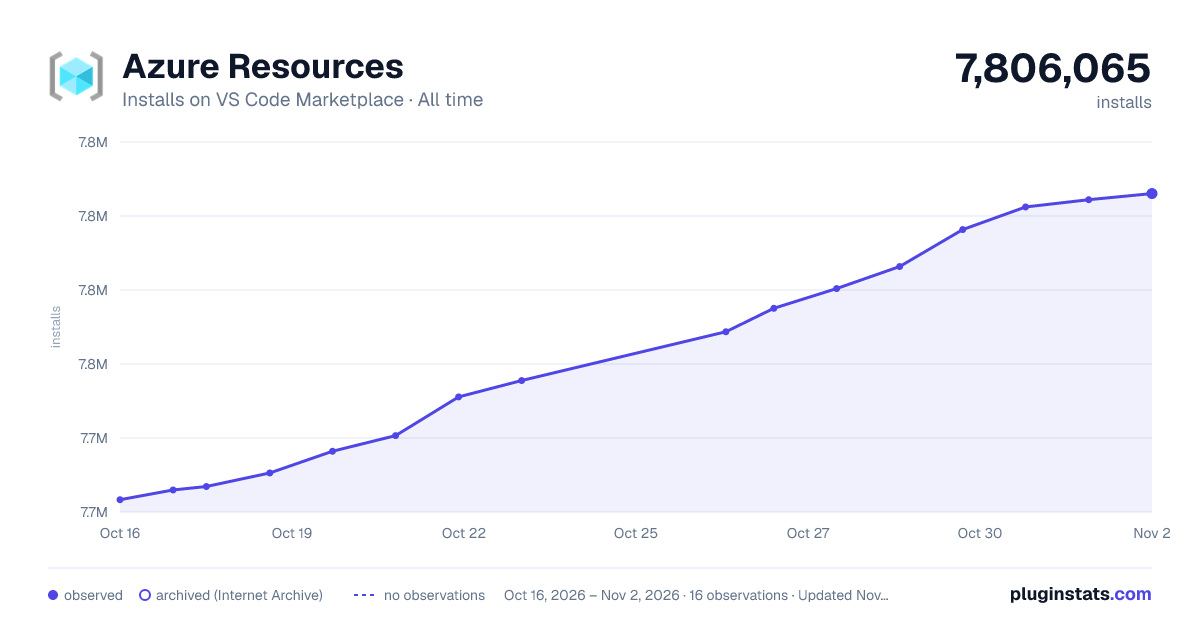

Adoption over time


7/30/90-day growth


Ranking history


Ratings over time


Listing placement


Filled points are observed values; hollow points come from Internet Archive snapshots of the listing page. Dashed segments span periods with no observations — values between points are not interpolated.
Each band is one page of 20. Installs on a log scale. Placement is projected from installs, so it can differ from the marketplace's own sort order. Hover a dot to see the listing.
Recent observations
Full history (4)Similar VS Code Marketplace Azure plugins
All 20 Azure Resources alternativesData source
Install counts, average rating, and rating counts come from the public Visual Studio Marketplace gallery API. Installs are cumulative and exclude updates.
Listing: https://marketplace.visualstudio.com/items?itemName=ms-azuretools.vscode-azureresourcegroups. First seen Oct 16, 2026; last successful collection Oct 19, 2026. See the methodology.