 PluginStats
Debugger for Mainframe installs statistics
By Broadcom (2 listings) · VS Code Marketplace · Debuggers
Code4z debugging extension for CICS and Batch applications written in COBOL and High-Level Assembler Language
Debugger for Mainframe has 172,332 recorded installs on VS Code Marketplace.
It ranks #1690 of 2,501 tracked VS Code Marketplace listings by installs.
It is rated 5.0 out of 5 from 3 ratings.
PluginStats has 4 daily observations since Oct 16, 2026; the latest is from Oct 19, 2026.
Rating: 5.00 / 5 from 3 ratings
About Debugger for Mainframe
Debugger for Mainframe
Debugger for Mainframe provides a debugging interface for InterTest™ for CICS and InterTest™ Batch. This extension provides a modern debugging experience for CICS and Batch programs written in COBOL and High-Level Assembler Language (HLASM).
Debugger for Mainframe enables the modern mainframe developer to debug CICS and Batch applications in the modern, intuitive interface of the Visual Studio Code Run and Debug Panel instead of the traditional 3270 green screen terminal. By bringing CICS and Batch application debugging directly into a widely adopted IDE, Debugger for Mainframe allows developers to navigate their mainframe code using familiar playback controls. This integration ensures that modern application developers can interact with enterprise mainframe code with the same fluid and accessible experience as they are accustomed to when debugging modern languages.
The extension enhances the debugging workflow through advanced control and visibility features: • Support for several types of breakpoints to precisely isolate specific programmatic behaviors. • Dynamic inspection of variables through a hierarchical tree view that accurately reflects complex data structures, such as COBOL levels. • Tracing features that track the sequence of program-to-program calls and the execution of individual statements.
Bringing these capabilities into VS Code delivers strategic value by accelerating developer productivity and reducing the time spent troubleshooting defects. By standardizing the development environment across both distributed and mainframe teams, organizations can facilitate a unified, cross-platform enterprise DevOps culture.
Debugger for Mainframe is part of the Code4z experience from Broadcom, which offers a modern experience for mainframe application developers. To get started with Code4z, check out our foundational extension pack.
Address Software Requirements
InterTest can be configured to support Debugger for Mainframe in one of two modes: • In Server Mode, Debugger for Mainframe connects to InterTest through a Testing Tools Server (an instance of CCS Apache Tomcat). The Testing Tools Server can also be integrated with the Zowe API Mediation Layer (Zowe API ML). • In SSH Mode, Debugger for Mainframe connects to InterTest through z/OS OpenSSH in Unix System Services.
SSH Mode is best suited to proofs of concept, early adoptions, and small user bases. We recommend the use of Server Mode for larger user bases and for production.
Before you use Debugger for Mainframe, ensure that your site and workstation meet the necessary requirements for your mode.
Requirements for Server Mode Configuration
• InterTest for CICS and/or InterTest Batch version 11 installed on the mainframe. Additionally, the following maintenance and configuration tasks must be completed: • Apply Level Set PTF 11.0.03 (LU19095) and PTF LU19740. • Configure the Testing Tools Server. • To debug CICS programs, configure CICS IRC and one of TCP or CAICCI. • To connect to Debugger for Mainframe through the Zowe API Mediation Layer, integrate your Testing Tools Server instance with Zowe API ML. • Java version 8.0 or higher installed on your client workstation with the PATH variable correctly configured.
For information about the Testing Tools Server and API Mediation Layer, see the InterTest documentation.
Requirements for SSH Mode Configuration
• InterTest for CICS and/or InterTest Batch version 11 installed on the mainframe. • Apply Level Set PTF 11.0.03 (LU19095) and PTF LU19740. • Access to USS over SSH. • Java version 8.0 or higher installed on USS. • Permission to use at least 320MB of RAM to run Java in USS. To debug larger programs, you might need to increase this allocation to 512MB. • At least 50 MB of disk space in your USS home directory.
Set Up Secure Connection
If you connect to InterTest in Server Mode, you can use Debugger for Mainframe over HTTPS if your Testing Tools Server instance is configured for a secure connection. We recommend that you use a secure connection unless you are on a private network or your connection is secured by other means.
To use Debugger for Mainframe over a secure connection, obtain the server certificate for your Testing Tools Server instance and import it to a certificate store. You can use a Java trust store or a trust store in your operating system.
Import Server Certificate to Java Trust Store
We recommend that you import the certificate to the store of the JRE under which the Debugger for Mainframe DA client is running on your local machine. You can use the command line or a UI tool.
Import Certificate using Command Line
Enter the following command: sudo keytool -import -alias hostname -file hostname.cer -storetype JKS -keystore cacerts
Import Certificate on a Linux Subsystem
1. To verify that Java is installed, run the command java -version. 2. Locate your subsystem's java installation. 3. Go to /lib/security to find cacerts. 4. Run the following command to import the certificate: sudo keytool -import -alias hostname -file hostname.cer -storetype JKS -keystore cacerts
Import Certificate using a UI Tool
1. In your preferred UI, locate and open cacerts. 2. Import the certificate to cacerts. 3. Name the certificate with an appropriate alias to ensure it is easily identified. 4. Save your changes.
Specify Location of Certificate in OS Trust Store
You can also import the certificate to a certificate store in your operating system and specify the location in the extension settings.…
Description from the VS Code Marketplace listing.
- assembler
- batch
- cics
- cobol
- code4z
- debug
- debuggers
- intertest
- intertest-batch
- intertest-cics
- keybindings
- zowe
Where Debugger for Mainframe sits in the listing
Each band is one page of 20. Installs on a log scale. Placement is projected from installs, so it can differ from the marketplace's own sort order. Hover a dot to see the listing.


Charts
Images: 30d · 1y · all time · 1600×900 dark


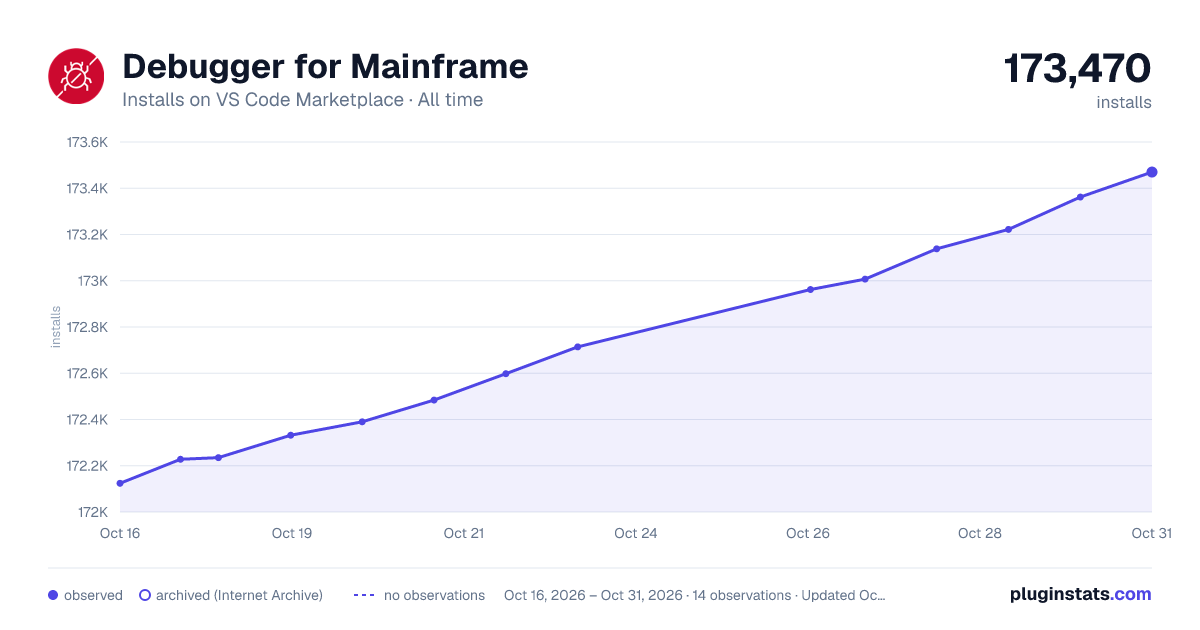

Adoption over time


7/30/90-day growth


Ranking history


Filled points are observed values; hollow points come from Internet Archive snapshots of the listing page. Dashed segments span periods with no observations — values between points are not interpolated.
Recent observations
Full history (4)Similar VS Code Marketplace Debuggers plugins
Data source
Install counts, average rating, and rating counts come from the public Visual Studio Marketplace gallery API. Installs are cumulative and exclude updates.
Listing: https://marketplace.visualstudio.com/items?itemName=broadcomMFD.debugger-for-mainframe. First seen Oct 16, 2026; last successful collection Oct 19, 2026. See the methodology.