 PluginStats
Salesforce Org Browser installs statistics
By Salesforce (33 listings) · VS Code Marketplace · Other
View and retrieve metadata from your Salesforce org
Salesforce Org Browser has 235,750 recorded installs on VS Code Marketplace, ranking #1357 of 2,501 tracked listings.
Rating: 4.00 / 5 from 1 ratings
About Salesforce Org Browser
Salesforce Org Browser
Browse metadata in an authenticated Salesforce org, inspect its contents, and retrieve components into the current Salesforce project.
Requirements
- VS Code 1.90.0 or later
- An authenticated Salesforce org
- A selected default org
- Salesforce Extension Pack for Visual Studio Code, which installs the required Salesforce Services extension
A Salesforce DX project is typical when retrieving metadata, but it is not required to browse an org.
Use Org Browser
- Select the Org Browser icon in the Activity Bar.
- Expand metadata types and components to inspect the default org's metadata.
- Select a component or metadata type and use retrieve commands when you want to add it to a local project.
Filter Metadata
Use Filter by Type/Component in the Org Browser toolbar to search metadata types and component names. When a filter is active, the toolbar icon changes to Edit Filter (active).
| Input | Searches |
|---|---|
Broker | Metadata type names and component names containing Broker |
Apex* | Type and component names matching the wildcard expression |
ApexClass: | Metadata type names matching ApexClass |
ApexClass:Broker | Components containing Broker within matching metadata types |
:Broker | Components containing Broker across all metadata types |
/Apex.*/ | Type and component names matching a regular expression |
ApexClass:/Broker.*/ | Components matching a regular expression within ApexClass |
Plain-text searches are case-insensitive substring searches. Use * for wildcard matching.
Local And Org Visibility
The Org Browser toolbar also has Show Local Types and Show Org Types toggles. They control which metadata is eligible to appear before a text filter is applied.
| Show Local Types | Show Org Types | Visible results |
|---|---|---|
| On | On | All available local and org metadata. |
| On | Off | Only metadata with a corresponding source file in the workspace. |
| Off | On | Only metadata known to exist in the active org, including components that also exist locally. |
| Off | Off | No results. This is an explicit "show nothing" state. |
The visibility toggles and the text filter combine as an intersection: a component must be visible under the selected local/org mode and match the text filter to appear. For example, with Show Local Types enabled and Show Org Types disabled, a component search returns only matching components that have local source files.
The toggles are stored per org ID with the text and regular-expression filters. Changing the default org restores that org's saved local/org visibility mode.
Search Timing
Org Browser applies a filter after you stop typing for 300 ms. Pressing Enter closes the filter input and applies its current value immediately.
Incomplete Search Expressions
Structured searches are not sent to the org until they are complete and valid. Examples that need correction include:
/Apexbecause the regular expression is missing its closing/ApexClass:/Brokerbecause the component regular expression is incompleteApexClass:/[/because the regular expression is invalid
For these expressions, Org Browser shows an empty-tree message explaining that the expression must be completed or corrected before searching the org. Correct the expression and pause typing to resume search behavior.
Search All Metadata Types
Org Browser initially searches metadata that is already loaded for the active org. On the first nonempty, valid text filter entered during an IDE session, if metadata types remain unloaded, it shows a non-modal notification once:
Search all N metadata types in the org? This may take longer and make additional requests.
| Action | Result |
|---|---|
| Search All Types | Discovers metadata across the org and expands results as matching types become available. |
| Use Loaded Results | Searches currently loaded metadata only. Results can be incomplete until additional metadata is loaded. |
| Dismiss notification | Uses loaded results for the current search. |
The notification appears after a valid term remains unchanged for the debounce interval, including type-only filters such as CustomObject:. It is not shown for incomplete or invalid structured expressions. Selecting either action or dismissing the notification uses up the offer for the current IDE session. A later text filter does not show it again until the IDE session restarts.
When Org Browser starts with a restored component filter, it waits for this choice before beginning the filtered tree projection. A restored type-only filter also receives the offer when it is the first valid filter in the session. This prevents metadata loading from starting before you choose the search scope.
Discovery Progress
While discovering all metadata types:
- The Org Browser tree uses its normal busy indicator during refreshes.
- The status bar shows progress, for example
Discovering org metadata 24/172. - Results refresh periodically as discovery progresses.
- A metadata type that cannot be listed is skipped and logged; it does not prevent results from other metadata types from appearing.
When Org Browser lazily loads metadata for the initial tree, an expanded node, or a regular tree refresh, the status bar uses the same Discovering org metadata text. It appears only when the request lasts longer than 300 ms, so cached results do not flash a status item. Concurrent requests are shown as Discovering org metadata (N requests).
The lightweight request count is not a completion total. Full filter discovery can show n/m progress because it first enumerates the metadata types and nested branches it will acquire. Ordinary tree loading is demand-driven: expanding a node or applying a filter can reveal further folders and fields, so Org Browser reports active requests rather than an inaccurate completion percentage.…
Description from the VS Code Marketplace listing.
README badge
Show your rank in a README or on your website. The badge updates automatically.
Charts
Images: 30d · 1y · all time · 1600×900 dark


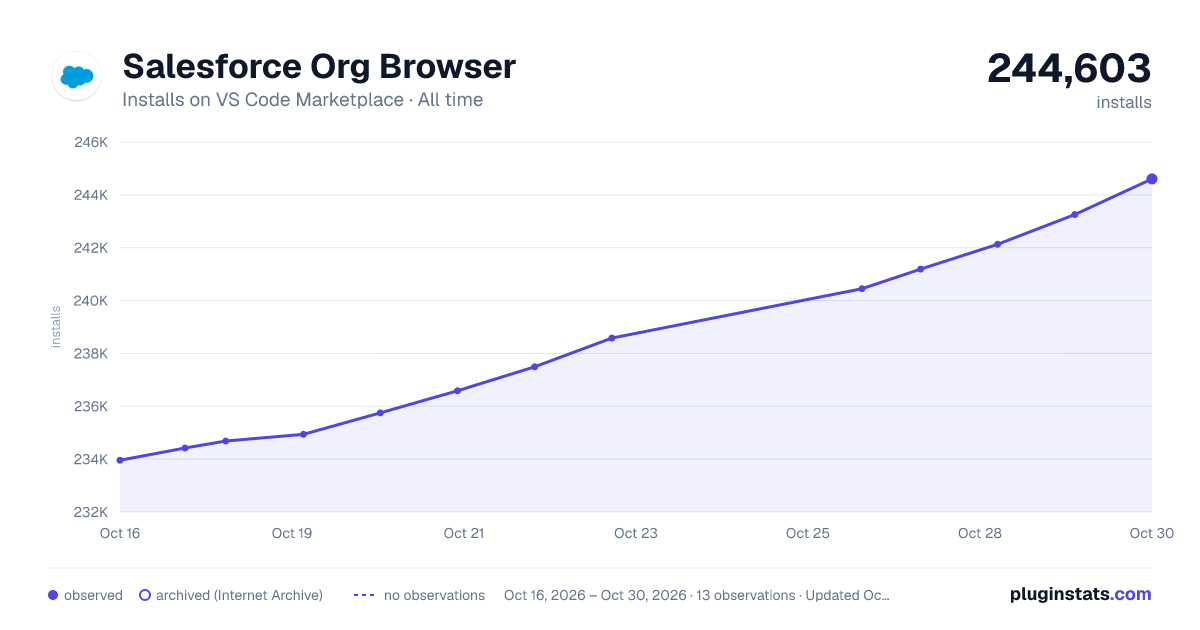

Adoption over time
7/30/90-day growth
Ranking history
Ratings over time
Listing placement
Listing placement
Filled points are observed values; hollow points come from Internet Archive snapshots of the listing page. Dashed segments span periods with no observations — values between points are not interpolated.
Each band is one page of 20. Installs on a linear scale. Placement is projected from installs, so it can differ from the marketplace's own sort order. Hover a dot to see the listing.
Recent observations
Full history (5)Similar VS Code Marketplace Other plugins
All 20 Salesforce Org Browser alternativesData source
Install counts, average rating, and rating counts come from the public Visual Studio Marketplace gallery API. Installs are cumulative and exclude updates.
Listing: https://marketplace.visualstudio.com/items?itemName=salesforce.salesforcedx-vscode-org-browser. First seen Oct 16, 2026; last successful collection Oct 20, 2026. See the methodology.