 PluginStats
@cocal/google-calendar-mcp weekly downloads statistics
By cocal · npm · MCP servers
Google Calendar MCP Server with extensive support for calendar management
@cocal/google-calendar-mcp has 3,399 recorded weekly downloads on npm, a decrease of 59.6% over the past 30 days, ranking #1216 of 2,322 tracked listings.
About @cocal/google-calendar-mcp
Google Calendar MCP Server
A Model Context Protocol (MCP) server that provides Google Calendar integration for AI assistants like Claude.
I built Cocal as a separate hosted calendar assistant, taking this project further with a full visual calendar inside your chat with Claude. Connect your Google accounts without creating a Google Cloud project or running a server.
• Plan across accounts. Check availability and catch conflicts across your work, personal, and shared Google Calendars in one conversation. • Use it on desktop and mobile. See and manage your calendars in Claude on web, desktop, iOS, and Android. • Carry your preferences into new chats. Save rules like “no meetings before 10” or which calendar to use for personal plans.
Real Cocal UI with sample calendar data. Click either screenshot to enlarge.
Try Cocal →
Features
• Multi-Account Support: Connect multiple Google accounts (e.g., work, personal) and query them simultaneously • Multi-Calendar Support: List events from multiple calendars in a single request • Cross-Account Conflicts: Detect overlapping events across any combination of calendars • Event Management: Create, update, delete, and search calendar events • Recurring Events: Advanced modification capabilities for recurring events • Free/Busy Queries: Check availability across calendars • Smart Scheduling: Natural language understanding for dates and times • Intelligent Import: Add calendar events from images, PDFs, or web links
Quick Start
Prerequisites
- A Google Cloud project with the Calendar API enabled 2. OAuth 2.0 credentials (Desktop app type)
Google Cloud Setup
- Go to the Google Cloud Console 2. Create a new project or select an existing one. 3. Enable the Google Calendar API for your project. Ensure that the right project is selected from the top bar before enabling the API. 4. Create OAuth 2.0 credentials: • Go to Credentials • Click "Create Credentials" > "OAuth client ID" • Choose "User data" for the type of data that the app will be accessing • Add your app name and contact information • Add the following scopes (optional): • https://www.googleapis.com/auth/calendar.events and https://www.googleapis.com/auth/calendar • Select "Desktop app" as the application type (Important!) • Save the auth key, you'll need to add its path to the JSON in the next step • Add your email address as a test user under the Audience screen • Note: it might take a few minutes for the test user to be added. The OAuth consent will not allow you to proceed until the test user has propagated. • Note about test mode: While an app is in test mode the auth tokens will expire after 1 week and need to be refreshed (see Re-authentication section below).
Installation
Option 1: Use with npx (Recommended)
Add to your Claude Desktop configuration:
macOS: ~/Library/Application Support/Claude/claude_desktop_config.json Windows: %APPDATA%\Claude\claude_desktop_config.json
⚠️ Important Note for npx Users: When using npx, you must specify the credentials file path using the GOOGLE_OAUTH_CREDENTIALS environment variable.
Option 2: Local Installation
Then add to Claude Desktop config using the local path or by specifying the path with the GOOGLE_OAUTH_CREDENTIALS environment variable.
Option 3: Docker Installation
See the Docker deployment guide for detailed configuration options including HTTP transport mode.
First Run
- Start Claude Desktop 2. Ask Claude to authenticate with the Google Calendar MCP server (e.g., "Authenticate with Google Calendar"). This step is required before using any calendar tool — without it, requests will fail with a -32600 error. 3. Complete the OAuth flow in your browser 4. You're ready to use calendar features!
Using Claude Code? The same steps apply — just ask Claude to authenticate with the Google Calendar MCP server from your CLI session before using any calendar tool.
Re-authentication
If you're in test mode (default), tokens expire after 7 days. If you are using a client like Claude Desktop it should open up a browser window to automatically re-auth. However, if you see authentication errors you can also resolve by following these steps:
For npx users:
For local installation:
To avoid weekly re-authentication, publish your app to production mode (without verification): 1. Go to Google Cloud Console → "APIs & Services" → "OAuth consent screen" 2. Click "PUBLISH APP" and confirm 3. Your tokens will no longer expire after 7 days but Google will show a warning about the app being unverified.
See Authentication Guide for details.
Service Account Authentication (optional)
A service account carries its own long-lived key, so there is no browser consent step and no refresh token to expire. This is the alternative to publishing your OAuth app when the weekly re-authentication above is impractical — headless servers, containers, CI, or an app you would rather leave in Testing status.
Which calendars this works for
| Calendar | Works? | How access is granted |
| Personal @gmail.com calendar | Yes | Share the calendar with the service account's e-mail address | | Google Workspace calendar | Yes | Share it, or use domain-wide delegation to impersonate a user | | Any calendar shared with you by someone else | No | The owner must share it with the service account directly |
Sharing is what grants access — the service account is a separate identity and sees nothing by default. Domain-wide delegation is not required for the personal-calendar case; it is only needed if you want the service account to act as a user.
Limitations…
Description from the npm listing.
- mcp
- model-context-protocol
- claude
- google-calendar
- calendar
- ai
- llm
- integration
README badge
Show your rank in a README or on your website. The badge updates automatically.
Charts
Images: 30d · 1y · all time · 1600×900 dark


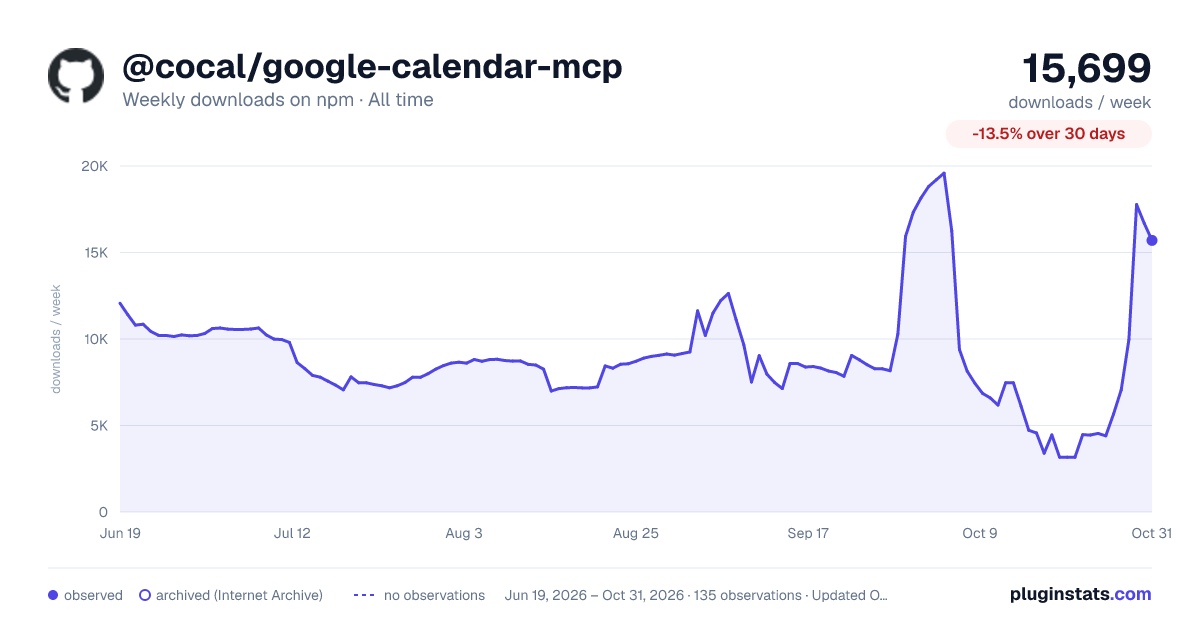

Adoption over time
7/30/90-day growth
Ranking history
Listing placement
Listing placement
Filled points are observed values; hollow points come from Internet Archive snapshots of the listing page. Dashed segments span periods with no observations — values between points are not interpolated.
Each band is one page of 20. Weekly downloads on a linear scale. Placement is projected from weekly downloads, so it can differ from the marketplace's own sort order. Hover a dot to see the listing.
Recent observations
Full history (121)Similar npm MCP servers plugins
All 20 @cocal/google-calendar-mcp alternativesData source
Weekly downloads (trailing 7 complete days) come from the official npm downloads API. Downloads include CI and mirrors and are not equivalent to installs or users. npm publishes no ratings.
Listing: https://www.npmjs.com/package/@cocal/google-calendar-mcp. First seen Oct 16, 2026; last successful collection Oct 17, 2026. See the methodology.