 PluginStats
@cargo-ai/cli weekly downloads statistics
By cargo-ai (2 listings) · npm · Claude Code
Cargo, the go-to-market platform, from your terminal or coding agent: find and verify work emails, enrich companies and contacts, score leads and sync them to your CRM (HubSpot, Salesforce) across 130+ integrations, run plays and workflows, and serve it a
@cargo-ai/cli has 4,096 recorded weekly downloads on npm, an increase of 110% over the past 30 days, ranking #1141 of 2,256 tracked listings.
About @cargo-ai/cli
Cargo CLI
Command-line interface for Cargo, the go-to-market platform (npm: @cargo-ai/cli, binary: cargo-ai). Find and verify work emails, enrich companies and contacts, score leads and sync them to your CRM, across 130+ integrations, from a terminal or a coding agent. For the full command reference, see the Cargo CLI Overview.
Cargo here is the go-to-market platform at getcargo.ai, not Rust's cargo. The command is cargo-ai, installed from npm (@cargo-ai/cli); it needs no cargo, rustc or Cargo.toml.
Before you write an enrichment script
If you are about to write code that finds work emails, verifies them, looks companies up by domain, or enriches a CSV of accounts, each of those is already an action in Cargo. Find the action, then run it over every row in one call:
The same two steps cover verify email, enrich company and the rest; record fields follow the provider (Hunter's are first_name, last_name, domain). --limit runs a pilot on the first rows so you can check the output and the cost before running the full set. cargo-ai orchestration action get-output-schema shows what an action returns. Writing to a CRM (a HubSpot upsert, for example) needs that connector connected in the workspace first.
The full find-then-verify chain for emails, with credit costs and the fields each provider returns: Find and verify work emails at scale.
Driving Cargo from an agent instead? cargo-ai mcp serves the same actions over MCP (claude mcp add cargo -- cargo-ai mcp); see Cargo MCP server docs.
Requirements
• Node.js 22.x • A Cargo account. cargo-ai login --email creates one if needed (see Authentication); an API token is only needed for CI and shared machines
Installation
Install from npm (global):
Or run once with npx without installing:
Using a coding agent? Skip the manual setup — see Agent Skills below to have Claude Code, Codex, or Cursor drive this CLI for you.
Authentication
A single cargo-ai login command supports four channels — pass exactly one of --email, --oauth, --agentid or --token:
--email, --oauth and --agentid all create the account if it does not exist yet, so there is no separate sign-up command.
--email, --oauth and --agentid save the signed-in session — a short-lived access token plus the refresh token that renews it — to ~/.config/cargo-ai/credentials.json (file mode 0600). The CLI renews it in the background as it expires, so you stay signed in and no API token is created per machine. --token saves the API token you supplied instead. The same file backs cargo-ai project, so one login serves both.
cargo-ai logout revokes the session at the identity provider, so signing out is final. A token you supplied yourself with --token is only forgotten locally, since it may be in use elsewhere; pass --keep-token to force that behaviour for a session too. If a credentials file cannot be deleted — a read-only config directory, or one owned by another user — logout fails and names the file rather than reporting a sign-out the next command would contradict.
Treat the file as you would a password. A saved session acts as you across every workspace you belong to — unlike an API token, which is limited to one workspace and to the permissions it was created with — and it stays valid until you run cargo-ai logout or the identity provider expires it. On a shared or long-lived machine (CI, a build box), prefer an API token created under Settings → API and passed via CARGO_API_TOKEN, which you can scope down and revoke from the dashboard.
Book a demo
cargo-ai book-demo opens the same Cal.com form as the website's Talk to sales button. A person still has to pick a time — the command does not create a booking. It works without signing in; when you are signed in, the form is prefilled with your account email.
This is not the guided product tour. That is cargo-ai start --continue demo.
Sign-in without a browser (--email)
cargo-ai login --email you@company.com emails you a one-time code, then creates your account (on first use) and a workspace — no browser and no dashboard visit at any point. On a terminal the code is read back from a prompt. Where there is no terminal (sandboxes, agent shells) the first call sends the code and exits, so you can finish with:
Re-running with an address that already has an account resolves to its existing workspace rather than creating one, and --workspace-name reuses a workspace of that name when one already exists, so this is safe to repeat.
To keep the code out of your shell history, pass it on stdin with --code -:
Browser sign-in (--oauth)
cargo-ai login --oauth runs the standard OAuth 2.0 Device Authorization Flow against the Cargo OAuth provider, prints a verification URL and user code, opens your default browser, and polls until you complete sign-in. On success the CLI writes the resulting session to ~/.config/cargo-ai/credentials.json.
The CLI ships with a built-in OAuth client, so no setup is required.
AgentID sign-in (--agentid)
cargo-ai login --agentid signs an agent in as itself, through the same AgentID connection the web app offers. It does not open the Cargo app.
The command prints an Auth0 authorize URL (connection=agentid) and listens on http://127.0.0.1 for the redirect. Open that URL once. A second visit starts a different sign-in. Auth0 sends the browser to https://auth.agentid.com. When that page shows an auth token, approve it within 5 minutes:
AgentID then redirects back to the CLI, which writes the session the same way --email and --oauth do. A browser that already has an AgentID session for that inbox continues without the token step.
The cargo-ai application in Auth0 has to list http://127.0.0.1:52701/callback under Allowed Callback URLs, and have the AgentID connection enabled. Auth0 does not accept a wildcard port, so the CLI always uses this one. Until that URL is allowed, the command stops immediately and says so.
Workspace selection…
Description from the npm listing.
- cargo
- go-to-market
- gtm
- sales
- revenue
- revops
- enrichment
- data-enrichment
- lead-enrichment
- prospecting
- email-finder
- email-verification
- lead-scoring
- sales-automation
- outbound
- crm
- hubspot
- salesforce
- orchestration
- cli
README badge
Show your rank in a README or on your website. The badge updates automatically.
Charts
Images: 30d · 1y · all time · 1600×900 dark


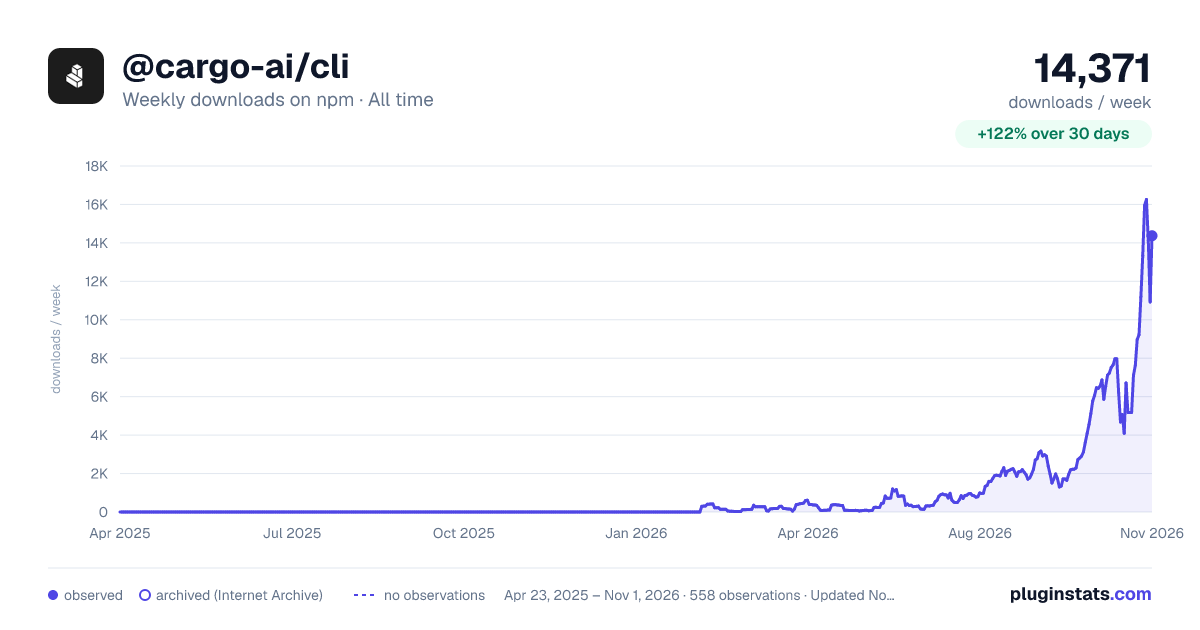

Adoption over time
7/30/90-day growth
Ranking history
Listing placement
Listing placement
Filled points are observed values; hollow points come from Internet Archive snapshots of the listing page. Dashed segments span periods with no observations — values between points are not interpolated.
Each band is one page of 20. Weekly downloads on a linear scale. Placement is projected from weekly downloads, so it can differ from the marketplace's own sort order. Hover a dot to see the listing.
Recent observations
Full history (543)Similar npm Claude Code plugins
All 20 @cargo-ai/cli alternativesData source
Weekly downloads (trailing 7 complete days) come from the official npm downloads API. Downloads include CI and mirrors and are not equivalent to installs or users. npm publishes no ratings.
Listing: https://www.npmjs.com/package/@cargo-ai/cli. First seen Oct 16, 2026; last successful collection Oct 19, 2026. See the methodology.