 PluginStats
@chat-adapter/gchat weekly downloads statistics
By chat-adapter (14 listings) · npm · AI SDKs
Google Chat adapter for Chat SDK — service account auth, Card v2, dialogs, and Workspace Events
@chat-adapter/gchat has 35,319 recorded weekly downloads on npm, a decrease of 38.6% over the past 30 days, ranking #656 of 2,322 tracked listings.
About @chat-adapter/gchat
@chat-adapter/gchat
npm package:
@chat-adapter/gchat


Google Chat adapter for Chat SDK. Configure with service account authentication and optional Pub/Sub.
Documentation: chat-sdk.dev/adapters/official/gchat · Guides: vercel.com/kb/chat-sdk
Installation
pnpm add @chat-adapter/gchat
Scaffold with the CLI
To scaffold a new Google Chat bot with this adapter preselected:
npx create-chat-sdk@latest my-bot --adapter gchat memory
Visit the adapters directory to see other available official and vendor-official adapters.
Usage
The adapter auto-detects credentials from GOOGLE_CHAT_CREDENTIALS or GOOGLE_CHAT_USE_ADC environment variables:
import { Chat } from "chat";
import { createGoogleChatAdapter } from "@chat-adapter/gchat";

const bot = new Chat({
  userName: "mybot",
  adapters: {
    gchat: createGoogleChatAdapter(),
  },
});

bot.onNewMention(async (thread, message) => {
  await thread.post("Hello from Google Chat!");
});
Google Chat setup
1. Create a GCP project
- Go to console.cloud.google.com
- Click the project dropdown then New Project
- Enter project name and click Create
2. Enable required APIs
Go to APIs & Services then Library and enable:
- Google Chat API
- Google Workspace Events API (for receiving all messages)
- Cloud Pub/Sub API (for receiving all messages)
3. Create a service account
- Go to IAM & Admin then Service Accounts
- Click Create Service Account
- Enter name and description
- Click Create and Continue
- Skip the optional steps, click Done
4. Create service account key
- Click on your service account
- Go to Keys tab
- Click Add Key then Create new key
- Select JSON and click Create
- Copy the entire JSON content as
GOOGLE_CHAT_CREDENTIALS
Note: If your organization has the
iam.disableServiceAccountKeyCreationconstraint enabled, you need to relax it or add an exception for your project in IAM & Admin then Organization Policies.
5. Configure Google Chat app
- Go to the Chat API configuration
- Click Configuration and fill in:
- App name: Your bot's display name
- Avatar URL: URL to your bot's avatar
- Description: What your bot does
- Interactive features: Enable Receive 1:1 messages and Join spaces and group conversations
- Connection settings: Select App URL
- App URL:
https://your-domain.com/api/webhooks/gchat - Visibility: Choose who can discover your app
- Click Save
6. Add bot to a space
- Open Google Chat
- Create or open a Space
- Click the space name then Manage apps & integrations
- Click Add apps, search for your app, and click Add
Pub/Sub for all messages (optional)
By default, Google Chat only sends webhooks for @mentions. To receive all messages in a space, set up Workspace Events with Pub/Sub.
createGoogleChatAdapter({
  pubsubTopic: process.env.GOOGLE_CHAT_PUBSUB_TOPIC,
  impersonateUser: process.env.GOOGLE_CHAT_IMPERSONATE_USER,
});
GOOGLE_CHAT_PUBSUB_TOPIC and GOOGLE_CHAT_IMPERSONATE_USER are also auto-detected from env vars, so you can omit them from config if the env vars are set.
1. Create Pub/Sub topic
- Go to Pub/Sub then Topics
- Click Create Topic
- Enter topic ID (e.g.,
chat-events) - Uncheck Add a default subscription
- Click Create
- Copy the full topic name as
GOOGLE_CHAT_PUBSUB_TOPIC(format:projects/your-project-id/topics/chat-events)
2. Grant Chat service account access
- Go to your Pub/Sub topic
- Click Permissions tab
- Click Add Principal
- Enter
chat-api-push@system.gserviceaccount.com - Select role Pub/Sub Publisher
- Click Save
3. Create push subscription
- Go to Pub/Sub then Subscriptions
- Click Create Subscription
- Select your topic
- Set Delivery type to Push
- Set Endpoint URL to
https://your-domain.com/api/webhooks/gchat - Check Enable authentication and pick a service account. This is what signs the OIDC token on each push, and its email is the value you set as
GOOGLE_CHAT_PUBSUB_SERVICE_ACCOUNT_EMAIL - Click Create
4. Enable domain-wide delegation
Domain-wide delegation is required for creating Workspace Events subscriptions and initiating DMs.
Step 1 — Enable delegation on the service account:
- Go to IAM & Admin then Service Accounts
- Click on your service account
- Check Enable Google Workspace Domain-wide Delegation and save
- Copy the Client ID (a numeric ID, not the email)
Step 2 — Authorize in Google Admin Console:…
Description from the npm listing.
- chat
- chat-sdk
- chatbot
- google-chat
- gchat
- google-workspace
- bot
- adapter
- messaging
- ai-agent
- ai-sdk
- vercel
README badge
Show your rank in a README or on your website. The badge updates automatically.
Charts
Images: 30d · 1y · all time · 1600×900 dark


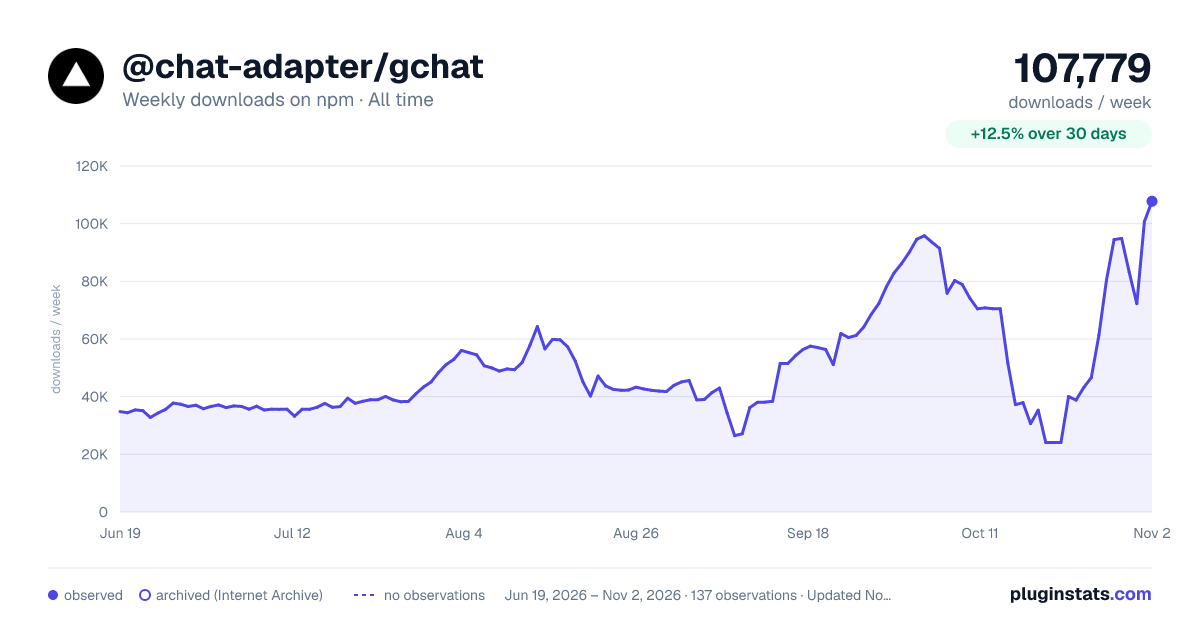

Adoption over time
7/30/90-day growth
Ranking history
Listing placement
Listing placement
Filled points are observed values; hollow points come from Internet Archive snapshots of the listing page. Dashed segments span periods with no observations — values between points are not interpolated.
Each band is one page of 20. Weekly downloads on a linear scale. Placement is projected from weekly downloads, so it can differ from the marketplace's own sort order. Hover a dot to see the listing.
Recent observations
Full history (122)Similar npm AI SDKs plugins
All 20 @chat-adapter/gchat alternativesData source
Weekly downloads (trailing 7 complete days) come from the official npm downloads API. Downloads include CI and mirrors and are not equivalent to installs or users. npm publishes no ratings.
Listing: https://www.npmjs.com/package/@chat-adapter/gchat. First seen Oct 16, 2026; last successful collection Oct 20, 2026. See the methodology.