 PluginStats
ClickUp: Tasks, Screenshots, Email, Time users statistics
Chrome Web Store · Workflow & Planning
ClickUp is a productivity platform that makes your personal and work lives more productive, saving you time.
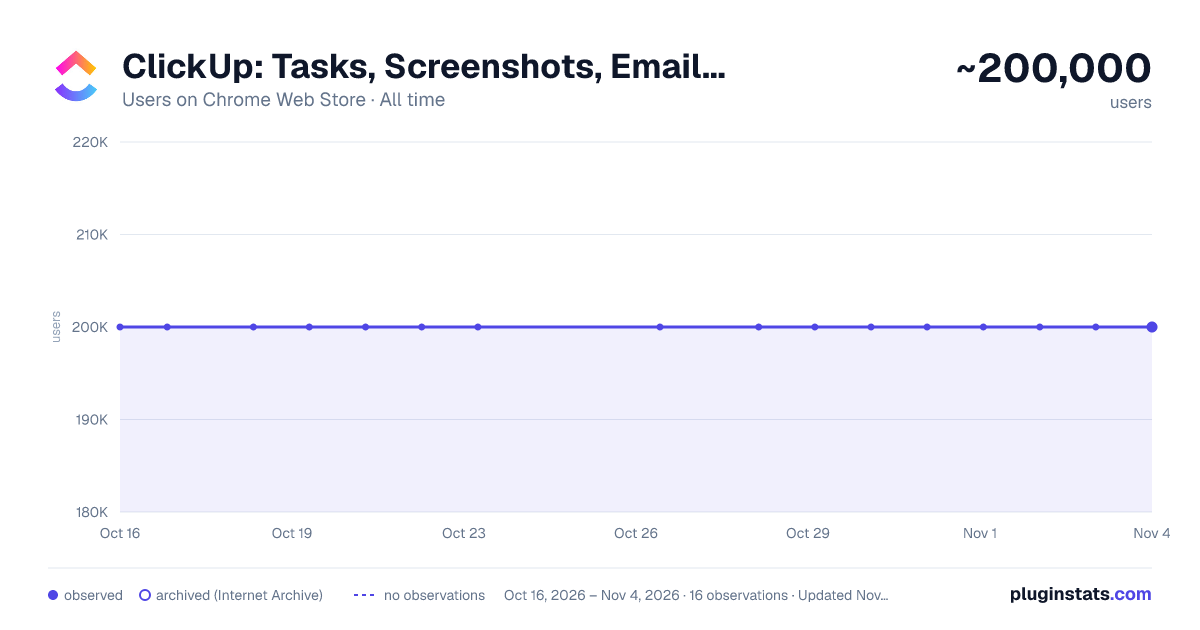
ClickUp: Tasks, Screenshots, Email, Time has approximately 200,000 recorded users on Chrome Web Store, ranking #68 of 2,495 tracked listings.
Rating: 1.90 / 5 from 386 ratings
About ClickUp: Tasks, Screenshots, Email, Time
ClickUp is a productivity platform that makes your personal and work lives more productive, saving you time.
ClickUp's revolutionary Chrome Extension replaces five separate apps, virtually allowing you to do anything!
- Create Tasks & Save Websites as Tasks
- Time Tracking: Easily attach time to ClickUp tasks
- Screenshots: Capture, mark up, and edit screenshots
- Email: Create tasks and attach emails to tasks
- Notepad
ClickUp is free forever for up to 100MB of files storage.
Installing the Chrome Extension
- Click ADD TO CHROME
- Click Add extension in the next popup
- Click the ClickUp extension icon at the top of your browser window.
- Log in to your ClickUp Account
- Select the Workspace(s) that should have access
Create Tasks & Saves Websites as Tasks
Creating a new task
- Select the "New Task" tab
- Write a title for your task
- Add assignees and a due date
- Write a description for your task. (Pro tip: Use Markdown Shortcuts in your description fast rich text editing)
- Click Create New Task
Bookmark a site as a task
- Click on the Bookmark tab
- This automatically sets the page title & URL as the task title
- You can also add a description here
- Then you'll also be given the option to attach a screenshot of the website to the task by clicking Include screenshot
Set a Default List Save a default destination for tasks making this the fastest way to add new tasks!
Time Tracking: Easily attach time to ClickUp tasks
Simply locate a task in the extension and select it to begin tracking time.
From the Time Spent window, you are able to view time logged on recent tasks and even remove time that was accidentally logged.
Back in the ClickUp task, the time has been logged, and we can even start the extension's timer from within the task.
Screenshots: capture, mark up, and edit screenshots
Capture Capture your entire browser tab or select a certain area to add to a task or download to your computer
Attach Attach the file to an existing task or create a new one
Mark Up The extension grants you extremely detailed mark up functionality:
Paintbrush
- draw what you want on top of the screenshot
- set a color and brush size
Arrow, line, circle, square
- quickly add shapes to highlight areas of the screenshot
- set a color and brush size
Text
- add notes right onto a screenshot
- set a color, size, and substrate (background)
Blur
- select an area of the screen you would like to remain hidden.
Numbers
- drop increasing numbered markers on your screenshot
- dragging and dropping allows you to create a box with the number
- perfect for sharing steps with a team member
Pointer
- select things you've already added to the screenshot and make adjustments Undo / Redo
Attach to comments
- Take a screenshot with the Chrome Extension
- With the screenshot still in the extension, open a task in ClickUp
- Open the comment editor
- Click the "Chrome attachment" button
Email: Create tasks and attach emails to tasks
Capture an email Click the Add to ClickUp button in your email to generate a full HTML record of the email.
Attach emails to tasks and create tasks from emails ClickUp will attach the email to a task or create a brand new one with the email attachment included so you can quickly view, jump back, or download the email!
For more info, check out our doc on attaching emails to ClickUp!
Notepad
You can also access your ClickUp notes from any page. Open the extension to the Notepad tab, and all of your notes are available from ClickUp. Your notes will sync across all your devices. Use Markdown Shortcuts and Rich Text in any note.
When hovering over a note, you will be able to rename the note, archive, delete, and convert the note to a task.
While inside a note, at the bottom are the options to see earlier versions of the note, open the fullscreen editor, as well as the option to convert the note to a task.
Floating Button
The ClickUp button gives you quick access to the Notepad, Bookmarks, Screenshots, Time Tracking, and creating a task from any webpage.
To move the button, click and drag it to any spot on the page.
To hide the button, hover over the x icon. You can choose to hide the button for the current session, always for the current website you're on, or turn them off all together.
Description from the Chrome Web Store listing.
README badge
Show your rank in a README or on your website. The badge updates automatically.
Charts
Images: 30d · 1y · all time · 1600×900 dark
Adoption over time
7/30/90-day growth
Ranking history
Ratings over time
Listing placement
Listing placement
Filled points are observed values; hollow points come from Internet Archive snapshots of the listing page. Dashed segments span periods with no observations — values between points are not interpolated.
Each band is one page of 20. Users on a linear scale. Placement is projected from users, so it can differ from the marketplace's own sort order. Hover a dot to see the listing.
Recent observations
Full history (4)Similar Chrome Web Store Workflow & Planning plugins
All 20 ClickUp: Tasks, Screenshots, Email, Time alternatives



Data source
Covers every Chrome Web Store extension with at least 100 users, found through the store's public sitemap. User counts are read from public listing pages. The 10% most-used extensions are refreshed daily, the next 40% weekly and the next 40% monthly; the least-used 10% are not refreshed. Google displays rounded user counts (and caps the display at 10,000,000+), so small changes may not be visible. Rating counts above 1,000 are rounded (e.g. 1.6K).
Listing: https://chromewebstore.google.com/detail/clickup-tasks-screenshots/pliibjocnfmkagafnbkfcimonlnlpghj. First seen Oct 16, 2026; last successful collection Oct 20, 2026. See the methodology.